Connect your own AI (Claude Code, Claude Desktop, Codex, Cursor or any MCP client) to Printgram. It can create communities and pages, moderate members, upload artwork, check the placement on a rendered shirt and publish products (Printgram staff verify each design before it goes on sale), or keep designs just for you in your wardrobe, with exactly your permissions.
Printgram does not generate images. Your AI makes the artwork with its own image tool (or fetches an image by URL), uploads it, positions it (zoom, x / y, rotation, front / back, shirt colour) and publishes it to a community page.
Add Printgram to Claude, ChatGPT or Codex and sign in with your Printgram account, then just ask: a design for your wardrobe, a page for your store, a new product. Your AI saves drafts and asks you before publishing anything.
URLhttps://printgram.in/api/mcp
Claude (claude.ai)
1
Open Settings → Connectors and click Add custom connector.
2
Name it Printgram, paste https://printgram.in/api/mcp and click Add.
3
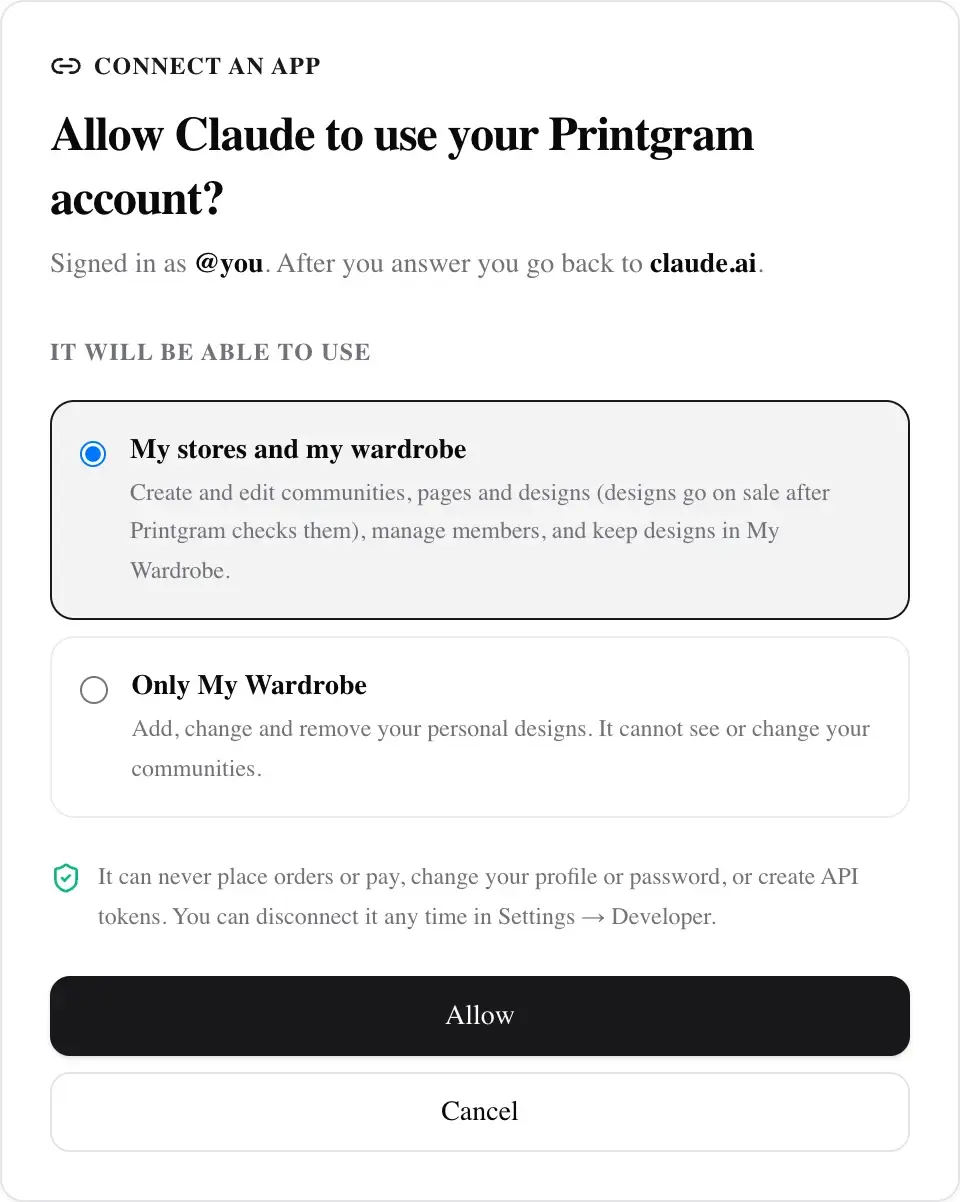
Click Connect. Printgram opens: sign in, choose what Claude may use (My stores and my wardrobe or Only My Wardrobe) and click Allow.
4
In a chat, open the tools menu and switch Printgram on. Then just ask.
ChatGPT
1
Open Settings → Apps & Connectors → Advanced settings and turn on Developer mode (ChatGPT Plus, Pro, Business, Enterprise or Edu).
2
Click Create: name Printgram, MCP server URL https://printgram.in/api/mcp, authentication OAuth. Tick that you trust it and click Create.
3
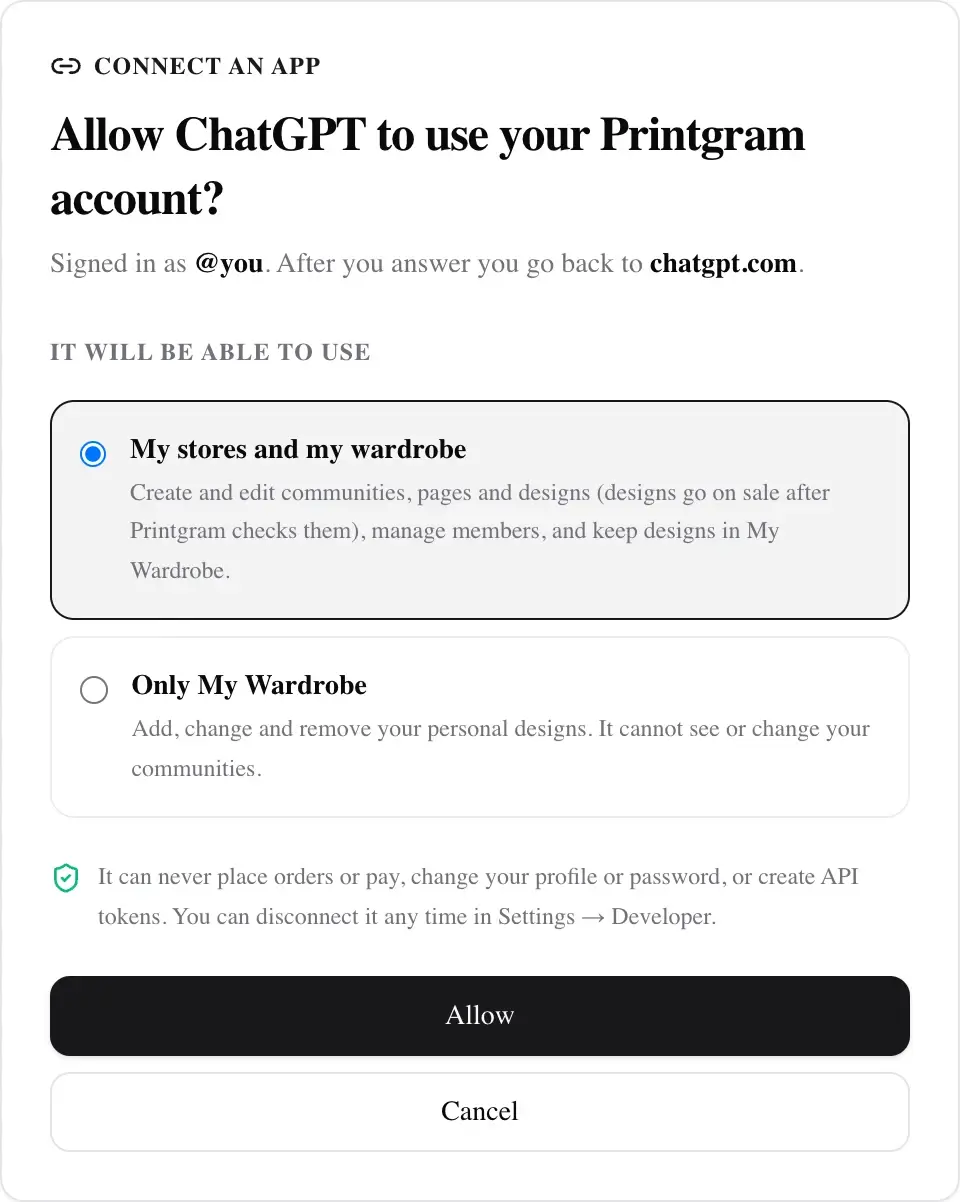
Printgram opens: sign in, choose what ChatGPT may use (My stores and my wardrobe or Only My Wardrobe) and click Allow.
4
In a new chat, click + → Developer mode and pick Printgram. Then just ask.
No token needed. The app acts as you and can never place orders, change your profile or create tokens. See or disconnect your apps any time in Settings → Developer.
Pictures your AI makes
ChatGPT uploads them to Printgram by itself.
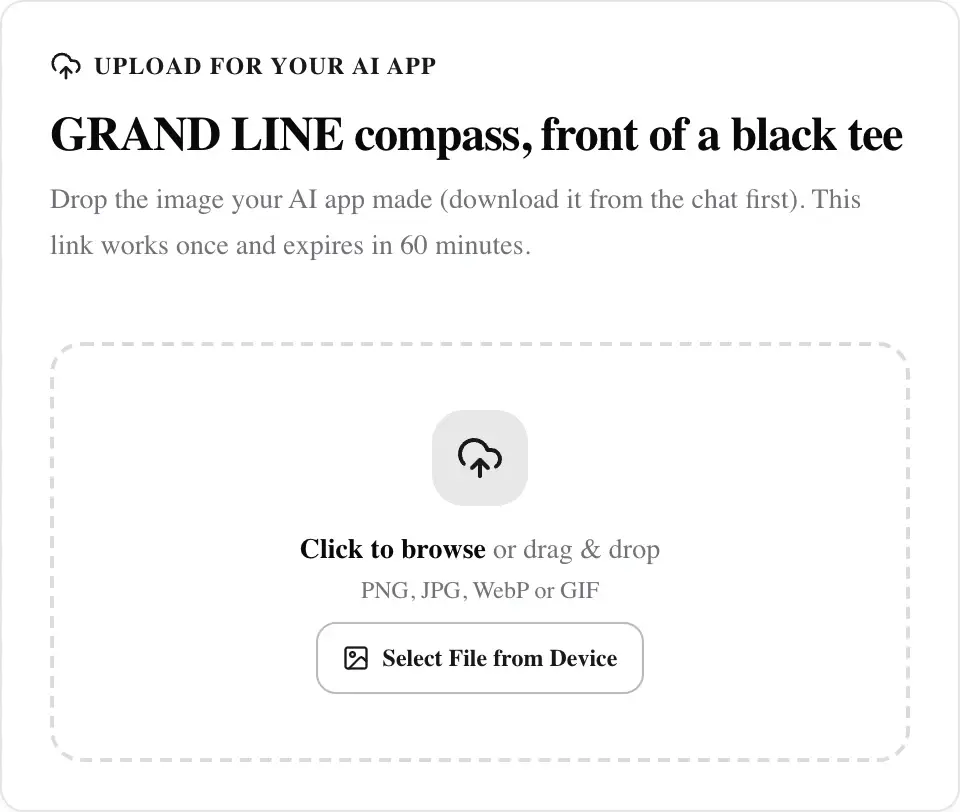
Claude uploads them by itself once you allow Printgram: Settings → Capabilities → Code execution and file creation, turn on network egress and add printgram.in under Additional allowed domains (on Team and Enterprise plans an owner sets this). Until then it gives you a one-time upload link: open it, drop the image (download it from the chat first) and tell Claude it is uploaded.
Codex uploads files from your computer itself (it may ask you to allow the upload).
Try it
“Use Printgram: who am I?”
“Make an original pirate-style compass design and add it to my wardrobe on a black tee.”
“In my community, create a page Summer Drop and add a draft T-shirt with a retro sunset design. Show me before publishing.”
Check who the token acts as, then pick a community you own (list_my_communities) or create one.
2Add a page
create_page
Optional collection or drop, saved as a draft. Once published it is public, members-only or staff-only.
3Generate the artwork
your AI
Your AI makes it with its own image tool, or finds an image URL. Transparent PNG, 2000 px or more.
4Upload it
upload_image_* · curl
Upload from a URL, as base64, or with curl to /api/v1/uploads. You get back a hosted url.
5Preview & iterate
preview_mockup
The AI gets a rendered shirt image and adjusts x / y / scale / rotation until it looks right.
6Review & publish
create_product · publish_drafts
Saved as a draft at /p/<slug> with server-rendered mockups and fixed pricing. Your AI opens it in your browser and publishes only after you say yes; it goes on sale once Printgram staff verify it.
Server overview
Item
Details
Endpoint
POST https://printgram.in/api/mcp
Transport
MCP Streamable HTTP in stateless JSON mode. Every POST stands alone: there is no session id and no SSE stream, and GET / DELETE return 405.
Auth
Authorization: Bearer <token> on every request: a personal access token, or an access token from Sign in with Printgram (OAuth 2.1 with PKCE and dynamic client registration, which Claude and ChatGPT use in the browser). Cookies are never read on this endpoint.
Identity
A new server is created for each request and bound to the token's user. Tools call the same services as the website, and those services re-check roles and bans in the database.
Limits
JSON body up to 20.25 MB (a 15 MB image in base64 plus the envelope). maxDuration is 60 s, which only hosts that honour it (e.g. Vercel) enforce; a self-hosted next start does not cap requests. Image downloads time out after 20 s and image processing after 20 s.
Everything your AI creates starts as a draft. Nothing goes live until you have seen it and said yes, and a design goes on sale only once Printgram staff have verified it.
Draft
Published
Page (create_page)
Only the owner, admins and moderators (signed in) see it and the designs on it; everyone else gets "not found".
Visible according to its visibility: public, members or private.
Product (create_product)
Only the owner, the community staff and its creator see it at /p/<slug>; nobody can buy it.
Waits for Printgram staff to verify it (pending_review), then on sale for everyone who can see it. A product on a draft page stays hidden until the page is published.
create_page and create_product return a review block: the reviewUrl, who can see the draft, how to show it, and the exact publish_drafts call.
The agent shows you the drafts: it opens each reviewUrl in your browser (open on macOS, start on Windows, xdg-open on Linux) or gives you the links, shares the mockups, and asks: publish, change something, or keep it as a draft?
Changes go through update_product_design, update_product or update_page; drafts stay drafts.
Only after you say yes, publish_drafts { community, page?, products?, user_confirmed: true } publishes the page and its products in one call. The page goes live at once; the designs go on sale once Printgram staff verify them (below). update_page and update_product refuse status: "published".
What the agent gets back
// create_product result (excerpt): the draft and how to show it
{
  "product": {
    "slug": "neon-ronin-tee",
    "status": "draft",
    "url": "https://printgram.in/p/neon-ronin-tee"
  },
  "review": {
    "status": "draft",
    "reviewUrl": "https://printgram.in/p/neon-ronin-tee",
    "visibleTo": "Only @you and this community's staff, signed in on the website. Everyone else gets \"not found\" until it is published.",
    "showTheUser": "Before publishing, show the user: open https://printgram.in/p/neon-ronin-tee in their browser (macOS: open \"<url>\"; Windows: start \"\" \"<url>\"; Linux: xdg-open \"<url>\") or give them the link, and share the preview_mockup image. Then ask whether to publish it, change something, or keep it as a draft.",
    "toChangeIt": "update_product_design (artwork, placement, colours) or update_product (title, description, page). It stays a draft.",
    "publishAfterApproval": {
      "tool": "publish_drafts",
      "arguments": {
        "community": "neon-ronin-club",
        "page": "launch-drop",
        "products": [
          "neon-ronin-tee"
        ],
        "user_confirmed": true
      }
    }
  }
}
You can also publish on the website: a draft page shows its staff a Publish page + N designs button, a draft product a Publish button, the page settings have a Status field, and “Save as Draft” sits next to “Launch Page Drop” when you create a page. Pass status: "published" when creating only if you want to skip your own review (Printgram staff still verify the design).
Design reviews: Printgram staff verify every design
Printgram staff check every community design before it goes on sale. Designs that use other people's logos, brands, characters or artwork without a licence are not verified. Publishing a design staff have not verified yet (publish_drafts, create_product with status: "published", or a Publish button) sends it to review instead of putting it on sale:
Status
Who sees it
What happens next
draft
The owner, the community staff and its creator.
You publish it: it waits for review, or goes straight on sale if staff already verified this artwork.
pending_review
The same people; nobody can buy it.
Staff verify it in the staff app and it goes on sale by itself (published), or mark it not verified (rejected).
published
Everyone its community, page and visibility allow.
New artwork sends it back to pending_review until staff verify it again; placement, colour, garment, title and page changes do not. Staff can also mark it not verified later.
rejected
The owner, the community staff and its creator.
Its reviewNote says why. Fix it and publish it again (publish_drafts or the Publish button): it goes back to review.
publish_drafts returns the designs it sent to review in submittedForReview and the ones already waiting in alreadyWaitingForReview. Pages are not reviewed.
Product results (create_product, get_product, list_products, …) carry status and verified, and for a rejected design the reviewNote (to the people who can edit it). On the website, designs under review are marked In review or Not verified on product cards, and the product page says why a design was not verified.
Platform admins' own designs count as verified and go on sale at once.
My Wardrobe designs are personal and never reviewed.
My Wardrobe (/wardrobe, signed in) holds designs just for you: only you can see and order them, they are never listed, never reviewed and never sold to anyone else, and they need no community. Keep any artwork there for your own shirts, up to 100 designs; the studio's Buy for Myself button saves there too. Paste the wardrobe prompt into your AI, or ask a connected AI for a design just for you.
My Wardrobe tools
Tool
What it does
list_wardrobe
The designs already in your wardrobe, with their artwork and placement.
add_to_wardrobe
Saves a design (the same artwork and placement input as create_product) and returns its url (/wardrobe/<id>), where you pick a colour and size and order it.
update_wardrobe_item
Changes the title, description, colours, garment, artwork or placement. Preview changes with preview_mockup and the design's id as product.
remove_from_wardrobe
Removes a design. Orders you already placed are printed as usual.
Other accounts get NOT_FOUND for your wardrobe designs (Printgram staff can open them to print your orders). They never appear in community listings, list_products or get_product: your AI manages them with the wardrobe tools.
Claude, ChatGPT and Codex do not need this: they sign in (see Connect your AI). An API token is for things that can't sign in through a browser: scripts and automation, older MCP clients and the upload API (POST /api/v1/uploads).
Sign-in not working in your app, or connecting a script?
Each POST is independent, so you can call tools/list or tools/call without an initialize first. Responses are plain JSON. Set PRINTGRAM_TOKEN in your shell first.
Every upload is decoded and re-encoded with sharp. Metadata is removed, EXIF orientation is applied, only the first frame of an animation is kept, so the stored file is never your original bytes. SVG is not accepted: export vector artwork as a PNG first. The MCP upload tools return { success, url, width, height, mimeType, bytes, next } (plus a note in storage-less demo mode); POST /api/v1/uploads returns the first six fields. Use the url as artwork_url (or avatar_url / banner_url / cover_image_url).
purpose
Stored as
Longest side
Used for
artwork
PNG
up to 4096 px
shirt designs (default)
avatar
WebP
up to 1024 px
community logo
banner
WebP
up to 2560 px
community banner
cover
WebP
up to 2560 px
page cover
Limits: 15 MB, at most 8000 px per side and 50 megapixels. Formats: PNG, JPEG, WebP, GIF (AVIF and TIFF are decoded too). SVG is refused with UNSUPPORTED_MEDIA. Images are never upscaled.
Uploads are limited to 120 per user per hour (one per image the server fetches from an external URL or decodes and stores), shared by the MCP upload tools, POST /api/v1/uploads, the website's own image uploads (POST /api/upload: studio artwork, avatars, banners, covers) and the image work of other tools. Each server instance keeps its own window.
Charged only after validation. A request is charged once it has validated (auth, body, purpose, base64 and URL syntax), right before the image is fetched, decoded and stored; invalid requests cost nothing, and a caller already out of quota is refused before the body is read. An image that turns out not to be an image after it was fetched or decoded still counts.
Other tools count too. Image URLs and data URLs passed to other tools (avatar_url, banner_url, cover_image_url, front.artwork_url, …) cost one when they are re-hosted, and artwork on an external URL costs one every time it is downloaded to render a mockup (preview_mockup, product mockups). URLs returned by an upload tool, and data URLs in previews, are free: upload once, then preview the returned url.
Renders have their own, higher quota of 300 per hour (preview_mockup and product mockups), so iterating on a preview of uploaded artwork never eats the upload quota.
Each user can have at most 2 image calls (uploads, previews, product renders) running at once; extra parallel calls fail fast with RATE_LIMITED. Send one JSON-RPC message per request: batches are rejected.
upload_image_from_url
Imports a public image, such as your image generator's output URL. Those URLs often expire, so import them right away. The fetch is SSRF-safe:
https only. http:// works only when the server sets ALLOW_HTTP_IMAGE_FETCH=true (development). URLs with credentials are refused, and the port must be the default or 80, 443, 8080, 8443.
localhost, *.local, *.internal and private or internal addresses are refused: RFC 1918, loopback, link-local (including cloud metadata 169.254.169.254), CGNAT, multicast and reserved ranges, IPv6 ULA and link-local, and IPv4-mapped, NAT64 and 6to4 forms. Every DNS answer is checked when the connection is made, and the peer address is checked again.
At most 3 redirects, each re-validated; 20 s timeout; the download is capped at 15 MB while streaming.
A small data:image/…;base64,… URL (up to 2,048 characters, the url limit) is decoded instead of fetched; use upload_image_base64 for anything larger.
upload_image_base64
data is raw base64 (standard or URL-safe) or a data:image/…;base64,… URL, up to 15 MB decoded (about 21 million characters), for base64 the agent already holds as data (a tool output it can pass on unchanged). A model must not retype an image it generated in a chat as base64: long strings get corrupted, so use an upload link. It is decoded as base64, so an https:// URL is rejected with VALIDATION: use upload_image_from_url for URLs. Base64 makes tool calls large, so prefer a URL or curl for big files.
upload_image_file (ChatGPT)
The tool asks ChatGPT for an image from the conversation through openai/fileParams, the way ChatGPT's own Google Drive app receives files: ChatGPT passes { download_url, file_id } and Printgram downloads the image itself. If no download link arrives, the tool says so and the AI uses an upload link instead.
Upload links (images made in a chat)
For Claude or ChatGPT in the browser, which have neither a public URL for the image they made nor an API token. create_upload_link returns pageUrl (/upload/<token>: you drop the image there, no sign-in) and uploadUrl (/api/upload-links/<token>: a program, such as the AI's code sandbox, sends the image as multipart file or raw bytes). The token is the only credential: it works once, expires after an hour and can only add one image to your uploads; a failed upload leaves it usable. You can have 10 waiting links. The page shrinks images over 4 MB in your browser first. check_upload_link then answers waiting, uploaded (with the image url) or expired.
POST /api/v1/uploads (curl)
Accepts a bearer token or a browser session. get_upload_instructions gives your AI the multipart, raw-body and JSON-URL commands with the site URL filled in (plus the endpoint, auth header, limits and response shape); the other commands below are extra examples.
Errors are { success: false, error, code }: 400 VALIDATION, 401 without a valid token, 413 PAYLOAD_TOO_LARGE, 415 UNSUPPORTED_MEDIA, or 429 over the upload limit (with a Retry-After header and code: "RATE_LIMITED").
Image fields on other tools (avatar_url, banner_url, cover_image_url, front.artwork_url, …) also accept a public https image or a data URL. When Supabase Storage is configured they are fetched with the same rules and re-hosted, so expiring generator links cannot break your products. In storage-less demo mode, https links are stored as they are (avatars and banners on hosts the site cannot render are converted to inline data URLs), so upload expiring links first.
Storage-less demo mode: when Supabase is not configured, uploads return inline data URLs: data:image/png;base64,… for artwork and data:image/webp;base64,… for avatars, banners and covers, with a note. Pass them to other tools exactly as they are. Other results show them as (inline … data URL …) to keep responses small.
Placement is described on an 800 × 800 px mockup. The web studio, the server-side renderer and the MCP tools all use the same numbers, so a design placed by your AI renders exactly like one placed by hand.
Field
Range
Meaning
x
-260 … 260
Artwork centre: centerX = 400 + x/100 × 160. Negative moves left, 0 is centred, and 10 units are 16 px.
y
-260 … 260
centerY = base + y/100 × 200, where base is 410 on the front and 380 on the back. Negative moves up towards the collar and positive moves down towards the hem.
scale
0.3 … 1.5
Longest side = 240 px × scale (72 px to 360 px), with the aspect ratio kept. 0.3-0.45 small logo, 0.6-0.9 standard chest/back print, 1.1-1.5 oversized.
rotation
-180 … 180
Degrees clockwise around the artwork centre. The studio offers ±45°, and previews warn beyond ±45°.
torso (printable) where the centre can go (x -260…260, y -260…260) front-center (x 0, y -40, scale 0.85) front-left-chest (x 45, y -70, scale 0.4)
Front and back are independent layers, and a product needs artwork on at least one side. Every product gets both views in Black, White, Blue and Red. A side without artwork is shown as a blank shirt, and the primary colour's front view is the thumbnail.
Defaults: front { x: 0, y: -40, scale: 0.85, rotation: 0 }, back { x: 0, y: -15, scale: 0.9, rotation: 0 }. When a side with artwork gets no placement at all, the result's warnings says the defaults were used.
Print area: x 250-550, y 220-600 on the front and 190-570 on the back. Only the part of the artwork inside it is printed; the rest is cut off. preview_mockup warns when part of it is cut off and suggests a placement that prints all of it (fitsPrintAreaAt).
A side can be sent nested (front / back, or design.front / design.back in previews) or at the top level: artwork_url, preset, x, y, scale, rotation apply to side (default: the top-level preset's side, else front). In create_product and add_to_wardrobe, a nested side needs its own artwork_url. In edits and previews, null removes a side's artwork.
Precedence: explicit x / y / scale / rotation always override a preset, wherever each is given (the preset fills only the numbers you omit); a top-level value wins over the same field in the nested layer (the result notes it); anything given nowhere keeps the defaults or the saved design.
Unknown or misplaced argument names (e.g. position, or shirt_color inside front) are rejected with MCP error -32602 … Unrecognized key(s) naming the key, never silently ignored.
Placement presets
Preset
Side
x
y
scale
rot.
Label
Centre (px)
Longest side
front-center
front
0
-40
0.85
0
Centre chest
(400, 330)
204 px
front-left-chest
front
45
-70
0.4
0
Left chest logo, on the wearer's left
(472, 270)
96 px
front-full
front
0
5
1.1
0
Full front print
(400, 420)
264 px
back-upper
back
0
-47
0.75
0
Upper back, below the collar
(400, 286)
180 px
back-full
back
0
0
1.1
0
Full back print
(400, 380)
264 px
back-lower
back
0
42
0.8
0
Lower back
(400, 464)
192 px
Shirt colours
Only these colours are printed, so only they are accepted (as hex or name; default #111111). A product offers its design colour plus any extra_colors; buyers switch between them on the product page. On dark shirts (#111111, #2563EB, #DC2626) use light or high-contrast artwork; on light shirts avoid white artwork.
Black#111111 · dark
White#FFFFFF
Blue#2563EB · dark
Red#DC2626 · dark
Garments & fixed pricing
Prices are fixed by the platform per garment type, in Indian rupees (INR) inclusive of all taxes; you cannot set a custom price. The designer payout is what the creator earns per item sold.
garment_type
Garment
Fabric
Retail (INR)
Designer payout
tshirt
Heavyweight T-Shirt
100% Ring-spun 240 GSM Combed Cotton
₹400
₹30
sweatshirt
Crewneck Sweatshirt
350 GSM Fleece Interior, Ribbed Cuffs
₹1,199
₹350
hoodie
Premium Pullover Hoodie
400 GSM Ultra-Heavy French Terry, Double Hood
₹1,499
₹450
Sizes: S, M, L, XL, 2XL, 3XL (default S, M, L, XL, 2XL, 3XL). create_product takes shirt_color plus up to 3 extra_colors swatches.
Artwork recommendations
PNG with a transparent background works best (JPEG/WebP/GIF are accepted, GIFs use the first frame). SVG is not accepted: export vector artwork as a PNG first.
At least 2000px on the longest side for print quality (4000px is ideal). Artwork is stored at up to 4096px. preview_mockup warns below 1500 px.
Max file size 15MB; 8000px per side, ~50 megapixels total.
Trim transparent padding around the artwork so scale behaves predictably.
Avoid thin hairlines and tiny text below ~0.5 scale — they will not print well.
Generate the image with your own image tool, then upload it: upload_image_from_url for a public URL, create_upload_link for an image made in a chat (never retype it as base64), or the curl upload.
Only upload artwork you own or have rights to. No third-party logos, trademarks or copyrighted characters.
preview_mockup renders the shirt the same way the store will, and nothing is saved. It returns an image block (PNG, 800 px by default, size 256-1024) and a text block whose text is a JSON string: the effective layer (x / y / scale / rotation, the applied preset and placementSource), the placement in 800 px coordinates, the bounds after rotation, the source artwork size, warnings (default placement used, top-level values that replaced nested ones, low resolution, sleeves, collar, hem, rotation, blank side) and a nextStep with the exact create_product arguments.
Give it either input shape, or both:
flat, the way agents naturally write it: { artwork_url, side?, preset?, x, y, scale, rotation, shirt_color, garment_type }. The fields apply to side; if it is omitted, the preset's side is used, else the front when a top-level artwork or number is given, else the side that has artwork;
nested: { design: { shirt_color, garment_type, front: { artwork_url, x, y, scale, rotation, preset? }, back? } }. Pass product to start from a saved design (a product, or one of your wardrobe designs).
Explicit x / y / scale / rotation always override a preset, wherever each is given; a top-level value wins over the same field in design.<side> (and warnings notes it). Unknown or misplaced argument names are rejected with an error that names them, so a typo can never silently fall back to the defaults. Artwork on an external URL is downloaded for each preview and also costs one upload; preview the url an upload returned instead.
Call get_design_guidelines once.
Call preview_mockup with one of the shapes above.
Look at the image, adjust y / scale / x / rotation (or the preset or colour) and preview again until warnings is empty.
Call create_product with the same values. Use status: "draft" to review it on the site first. For a design just for you, call add_to_wardrobe instead.
This reference is generated from the server's own tools/list response, so names, parameters, bounds and defaults always match what your AI receives. "Who can call it" is enforced by the services; platform admins also pass community staff checks. The blue notes describe behaviour the tool descriptions don't spell out.
Returns the Printgram account this API token acts as (id, username, display name, platform role) and the site URL. Every other tool runs with exactly these permissions. Call it first to confirm the connection works.
Lists the communities you are an ACTIVE member of, with your role in each (owner > admin > moderator > member), member and product counts and the storefront URL. Only communities where your role is "owner" allow create_product; owner/admin can manage pages, settings and invite links; moderator+ can moderate members and review join requests.
Creates a new community storefront owned by you (you become its owner — the only role that can add products). Pick the slug carefully: the storefront lives at /c/<slug>. Images: pass URLs returned by upload_image_from_url / upload_image_base64 (or any public https image URL — it is re-hosted). Next step: create_page, then add designs with create_product.
Who can call it: Any valid token (you become the owner)
Community names are unique, ignoring case and extra spaces ("Night Owls" and "night owls" count as the same name): a name another community already uses fails with CONFLICT.
Slugs follow the website rule exactly: lowercase letters, digits and hyphens, 1 or 3-48 characters, no leading or trailing hyphen, not UUID-shaped. Reserved community slugs are refused with VALIDATION and the website's message: official, new, admin, api, settings, create, create-community, create-product, explore, communities, search, login, logout, signup, auth, profile, account, help, support, about, terms, privacy, mcp, printgram, www. The default slug comes from the name, so pass an explicit slug when the name maps to a reserved or too-short one.
view_access: "link" means anyone with the storefront URL can view it, but the community, its pages and its products are never listed (search, explore, the communities hub, the sitemap, featured pages), like visibility: "unlisted". members restricts viewing to active members; a public members-only community is still listed (locked).
Parameters
namestring
required
2 to 60 chars
Display name, 2-60 characters.
slugstringoptional
1 to 48 charspattern ^[a-z0-9](?:[a-z0-9-]{1,46}[a-z0-9])?$
URL handle: lowercase letters, digits and hyphens, 1 or 3-48 characters, no leading/trailing hyphen (reserved words such as "admin" are refused). Defaults to a slug of the name.
taglinestringoptional
max 120 chars
One-line pitch shown under the name (max 120 chars).
descriptionstringoptional
max 2,000 chars
About text (max 2000 chars).
visibilitystringoptionaldefault "public"
publicunlistedprivate
public = listed in explore/search (unless view_access is "link"), anyone can view and join; unlisted = not listed, anyone with the URL can view/join; private = hidden everywhere, content for members only, joinable only via invite link, direct invitation or an approved join request.
view_accessstringoptionaldefault "everyone"
everyonelinkmembers
Who can browse the storefront of a public/unlisted community: everyone = anyone (a public community is listed in explore/search); link = anyone who has the storefront URL, but the community and its pages and products are never listed anywhere; members = active members only. Private communities are always members-only.
purchase_accessstringoptionaldefault "everyone"
everyonelink_usersmembers
Who can buy: everyone who can view, link_users (members or people with a storefront link), or members only.
Details of one community as YOU see it: settings, counts, your role, what you are allowed to do there (permissions), and the pages visible to you (members-only pages are flagged locked if you are not a member; private staff-only pages are hidden from non-staff). Fails for private communities you are not a member of.
Who can call it: Anyone who can view the community (private: active members)
A private or members-only community you are not a member of returns FORBIDDEN (BANNED if you are banned), not NOT_FOUND.
Parameters
communitystring
required
1 to 120 chars
Community slug (e.g. "neon-coders", as in /c/neon-coders) or community id.
Updates community settings. Owner or admin: name, tagline, description, avatar_url, banner_url, accent colour. OWNER ONLY: visibility, view_access, purchase_access and slug (changing the slug changes every storefront URL). Making a community private hides it from all listings and turns its public pages into members-only pages. Only pass the fields you want to change.
Who can call it: Owner or admin; visibility, access and slug: owner only
Community names are unique, ignoring case and extra spaces ("Night Owls" and "night owls" count as the same name): a name another community already uses fails with CONFLICT.
Slugs follow the website rule exactly: lowercase letters, digits and hyphens, 1 or 3-48 characters, no leading or trailing hyphen, not UUID-shaped. Reserved community slugs are refused with VALIDATION and the website's message: official, new, admin, api, settings, create, create-community, create-product, explore, communities, search, login, logout, signup, auth, profile, account, help, support, about, terms, privacy, mcp, printgram, www. The default slug comes from the name, so pass an explicit slug when the name maps to a reserved or too-short one.
view_access: "link" means anyone with the storefront URL can view it, but the community, its pages and its products are never listed (search, explore, the communities hub, the sitemap, featured pages), like visibility: "unlisted". members restricts viewing to active members; a public members-only community is still listed (locked).
Parameters
communitystring
required
1 to 120 chars
Community slug (e.g. "neon-coders", as in /c/neon-coders) or community id.
namestringoptional
2 to 60 chars
taglinestring | nulloptional
max 120 chars
null clears it.
descriptionstring | nulloptional
max 2,000 chars
null clears it.
avatar_urlstring | nulloptional
https:// URL or data:image URL (image ≤ 15 MB)
New logo (https or data URL); null removes it.
banner_urlstring | nulloptional
https:// URL or data:image URL (image ≤ 15 MB)
New banner (https or data URL); null removes it.
accent_colorstringoptional
pattern ^#[0-9a-fA-F]{6}$
Theme accent colour, e.g. #8B5CF6.
visibilitystringoptional
publicunlistedprivate
public = listed in explore/search (unless view_access is "link"), anyone can view and join; unlisted = not listed, anyone with the URL can view/join; private = hidden everywhere, content for members only, joinable only via invite link, direct invitation or an approved join request.
view_accessstringoptional
everyonelinkmembers
Who can browse the storefront of a public/unlisted community: everyone = anyone (a public community is listed in explore/search); link = anyone who has the storefront URL, but the community and its pages and products are never listed anywhere; members = active members only. Private communities are always members-only.
purchase_accessstringoptional
everyonelink_usersmembers
Who can buy: everyone who can view, link_users (members or people with a storefront link), or members only.
slugstringoptional
1 to 48 charspattern ^[a-z0-9](?:[a-z0-9-]{1,46}[a-z0-9])?$
New URL handle (owner only), same rules as create_community.
Members & moderation (5)
Removals and bans (moderator and above) and role changes (owner and admins).
Lists members of a community you can view: username, role (owner/admin/moderator/member), status and join date. Banned members are only included for moderators and above (set include_banned). Paginate with offset/limit.
Who can call it: Anyone who can view the community; banned rows: moderator+
Parameters
communitystring
required
1 to 120 chars
Community slug (e.g. "neon-coders", as in /c/neon-coders) or community id.
Changes an active member's role to admin, moderator or member. You can only manage members ranked below you and only grant roles below your own; only the owner can promote to admin. The owner role cannot be assigned or changed.
Who can call it: Owner or admin, on members ranked below you; promote to admin: owner (or platform admin) only
Moderators cannot change roles at all (FORBIDDEN, "Only the community owner or an admin can change member roles."), not even to the role a member already has; they remove, ban and unban members instead.
Parameters
communitystring
required
1 to 120 chars
Community slug (e.g. "neon-coders", as in /c/neon-coders) or community id.
userstring
required
1 to 64 chars
Target user: username (e.g. "alice" or "@alice") or user id.
Removes a member from the community (they may rejoin later if the community allows it — use ban_member to keep them out). Moderator+ only, and only for members ranked below you. The owner can never be removed.
Who can call it: Moderator+ on lower ranks (never the owner)
Parameters
communitystring
required
1 to 120 chars
Community slug (e.g. "neon-coders", as in /c/neon-coders) or community id.
userstring
required
1 to 64 chars
Target user: username (e.g. "alice" or "@alice") or user id.
Bans a user from the community: they lose access to members-only content, cannot purchase, and cannot rejoin by any route (join, invite link, invitation or request) until unbanned. Works on non-members too (pre-emptive ban). Moderator+ only, for users ranked below you; the owner can never be banned.
Who can call it: Moderator+ on lower ranks (never the owner)
Parameters
communitystring
required
1 to 120 chars
Community slug (e.g. "neon-coders", as in /c/neon-coders) or community id.
userstring
required
1 to 64 chars
Target user: username (e.g. "alice" or "@alice") or user id.
Lifts a ban: restores a former member (as an active member with the "member" role); a pre-emptive ban of a non-member is simply lifted. Moderator+ only, and you must rank at least as high as whoever issued the ban.
Who can call it: Moderator+
Parameters
communitystring
required
1 to 120 chars
Community slug (e.g. "neon-coders", as in /c/neon-coders) or community id.
userstring
required
1 to 64 chars
Target user: username (e.g. "alice" or "@alice") or user id.
Invites & join requests (6)
Invite links, direct invitations and join-request review, the ways into a private community.
Creates a shareable invite link (owner/admin only). Anyone signed in who opens it can join — it is the only way into a PRIVATE community without staff review. Limit it with max_uses and/or expires_in_hours; revoke it any time with revoke_invite_link. Treat the returned URL like a password.
Who can call it: Owner or admin
Parameters
communitystring
required
1 to 120 chars
Community slug (e.g. "neon-coders", as in /c/neon-coders) or community id.
max_usesintegeroptional
1 to 10,000
How many people can join with it (omit for unlimited).
expires_in_hoursintegeroptional
1 to 8,760
Lifetime in hours, up to 1 year (omit for no expiry).
Lists requests from users who asked to join a (private) community, with their profile and message. Moderator+ only. Approve or reject them with review_join_request.
Who can call it: Moderator+
Parameters
communitystring
required
1 to 120 chars
Community slug (e.g. "neon-coders", as in /c/neon-coders) or community id.
Sends a direct invitation to a specific user (by username). They see it on their profile and can accept (joining immediately, even for private communities) or decline. Moderator+ only; fails if they are already a member, banned, or already have a pending invitation.
Who can call it: Moderator+
Inviting a banned user fails with CONFLICT ("Unban them before inviting them"), not BANNED.
Parameters
communitystring
required
1 to 120 chars
Community slug (e.g. "neon-coders", as in /c/neon-coders) or community id.
usernamestring
required
1 to 64 chars
Username of the person to invite (with or without @).
messagestringoptional
max 500 chars
Optional personal note (max 500 chars).
Pages (4)
Collections / drops inside a community, each with its own visibility.
Creates a page (a collection / drop) inside a community — owner or admin only. It starts as a DRAFT that only the community staff can see: show the user its reviewUrl, and publish it with publish_drafts once they approve. Products can then be placed on it with create_product(page=...). Visibility (who sees it once published): public, members (members-only) or private (staff-only). In a private community only members/private are allowed. The page lives at /c/<community>/<page-slug>.
Who can call it: Owner or admin
Saved as a draft by default (status: "draft"): only the owner and the community staff can see it, signed in; everyone else gets "not found". The result has a review block: the reviewUrl to show the user, who can see the draft, and the exact publish_drafts call to make once the user approves. Pass status: "published" only when the user explicitly asked to publish without reviewing.
Products on a draft page stay hidden until the page is published, even published ones.
Page slugs follow the website rule exactly: lowercase letters, digits and hyphens, 1-80 characters, not UUID-shaped. Reserved page slugs are refused with VALIDATION and the website's message: builder, join, members, new-page, settings, invites, invitations, requests, products, pages, edit, admin, api. The default slug comes from the title (a page titled "Members" fails), so pass an explicit slug such as members-drop.
Parameters
communitystring
required
1 to 120 chars
Community slug (e.g. "neon-coders", as in /c/neon-coders) or community id.
titlestring
required
1 to 80 chars
Page title, e.g. "Summer Drop 2026".
slugstringoptional
1 to 80 charspattern ^[a-z0-9](?:[a-z0-9-]{0,78}[a-z0-9])?$
URL slug: lowercase letters, digits and hyphens, 1-80 characters (reserved words such as "members" are refused). Defaults to a slug of the title.
descriptionstringoptional
max 1,000 chars
cover_image_urlstringoptional
https:// URL or data:image URL (image ≤ 15 MB)
Optional cover image (https or data URL, re-hosted).
visibilitystringoptional
publicmembersprivate
Defaults to public (members for private communities).
statusstringoptionaldefault "draft"
draftpublished
Defaults to draft (the user reviews it first). Use "published" only when the user explicitly asked to publish without reviewing.
Edits a page (owner or admin only): title, slug, description, cover image, visibility or display order. Only pass fields you want to change; a draft stays a draft. Visibility is validated against the community (no public pages in private communities). status "draft" takes a published page back to staff-only; publishing is done with publish_drafts after the user approved the draft.
Who can call it: Owner or admin
status: "draft" takes a published page back to staff-only. status: "published" is refused with VALIDATION: publish with publish_drafts, after the user approved the draft.
Page slugs follow the website rule exactly: lowercase letters, digits and hyphens, 1-80 characters, not UUID-shaped. Reserved page slugs are refused with VALIDATION and the website's message: builder, join, members, new-page, settings, invites, invitations, requests, products, pages, edit, admin, api. The default slug comes from the title (a page titled "Members" fails), so pass an explicit slug such as members-drop.
Parameters
communitystring
required
1 to 120 chars
Community slug (e.g. "neon-coders", as in /c/neon-coders) or community id.
pagestring
required
1 to 120 chars
Page slug (as in /c/<community>/<page-slug>) or page id.
titlestringoptional
1 to 80 chars
slugstringoptional
1 to 80 charspattern ^[a-z0-9](?:[a-z0-9-]{0,78}[a-z0-9])?$
New URL slug, same rules as create_page.
descriptionstring | nulloptional
max 1,000 chars
null clears it.
cover_image_urlstring | nulloptional
https:// URL or data:image URL (image ≤ 15 MB)
New cover (https or data URL); null removes it.
visibilitystringoptional
publicmembersprivate
public = anyone who can view the community; members = active members only (listed with a lock for others); private = staff only (owner/admin/moderator), hidden from everyone else. A private community cannot have public pages.
statusstringoptional
draftpublished
"draft" unpublishes the page (staff-only again). To publish, use publish_drafts.
Deletes a page (owner or admin only). Products on it are NOT deleted — they move to the storefront root (no page) without becoming more visible: products of a members-only page become members-only (visibility "private"), and published products of a staff-only page are unpublished (status "draft"). Use update_product(page=..., visibility=..., status=...) afterwards to re-home or re-publish them.
Who can call it: Owner or admin
Parameters
communitystring
required
1 to 120 chars
Community slug (e.g. "neon-coders", as in /c/neon-coders) or community id.
pagestring
required
1 to 120 chars
Page slug (as in /c/<community>/<page-slug>) or page id.
Lists the pages of a community that are visible to you, with visibility, status (draft / published) and URL. Members-only pages are flagged locked when you are not a member; staff-only and draft pages are only listed for staff. Also returns which visibilities new pages may use and whether you can manage pages.
Who can call it: Anyone who can view the community
Parameters
communitystring
required
1 to 120 chars
Community slug (e.g. "neon-coders", as in /c/neon-coders) or community id.
Posts (3)
The community feed: the owner's posts, which members like, comment on and reply to on the website.
Publishes a post to a community's feed — community OWNER only. A post is text with an optional image; members like it, comment and reply on the website. Posts appear newest first on the Posts tab of /c/<community>.
Who can call it: Community OWNER only
At most 20 posts per user per hour; beyond that the call fails with RATE_LIMITED. Likes, comments and replies happen on the website only: API tokens cannot be used for them (403 FORBIDDEN).
Parameters
communitystring
required
1 to 120 chars
Community slug (e.g. "neon-coders", as in /c/neon-coders) or community id.
bodystring
required
1 to 5,000 chars
The post text. Line breaks are kept; more than one blank line in a row is collapsed.
Lists a community's posts, newest first, with like and comment counts and a link to each post. Also says whether you can post there (only the owner can).
Who can call it: Anyone who can view the community
Parameters
communitystring
required
1 to 120 chars
Community slug (e.g. "neon-coders", as in /c/neon-coders) or community id.
Imports an image from a public https URL (e.g. the output URL of your image generator — these often expire, so import right away). The server downloads it (max 15MB, private/internal addresses are refused), verifies it is a real image, strips metadata, converts it (PNG for artwork) and stores it. Returns a permanent url plus width/height.
Who can call it: Any valid token (120 uploads / hour)
Returns { success, url, width, height, mimeType, bytes, next }, plus a note in storage-less demo mode. The quota (120 per user per hour) is shared with POST /api/v1/uploads, the website uploads, re-hosted images and external artwork URLs fetched for previews and product mockups. A call is charged only when the image is actually fetched or decoded: invalid base64, a refused URL or a caller already out of quota costs nothing; an image rejected after that (e.g. not an image) still counts.
url may also be a data:image/…;base64,… URL of up to 2,048 characters (use upload_image_base64 for anything larger). http:// URLs are fetched only when the server sets ALLOW_HTTP_IMAGE_FETCH=true.
Parameters
urlstring
required
1 to 2,048 chars
Public https:// URL of the image.
purposestringoptionaldefault "artwork"
artworkcoveravatarbanner
artwork = shirt designs (kept as PNG up to 4096px); avatar = community logo; banner / cover = wide header or page cover images.
ChatGPT: uploads an image from this conversation (one you generated or the user attached) straight to Printgram. Pass the image as file; ChatGPT supplies its download link. Returns a permanent url to use as artwork_url. If no download link arrives, use create_upload_link instead. Other apps: upload_image_from_url for a public URL, create_upload_link for an image made in a chat.
Who can call it: Any valid token (120 uploads / hour)
Returns { success, url, width, height, mimeType, bytes, next }, plus a note in storage-less demo mode. The quota (120 per user per hour) is shared with POST /api/v1/uploads, the website uploads, re-hosted images and external artwork URLs fetched for previews and product mockups. A call is charged only when the image is actually fetched or decoded: invalid base64, a refused URL or a caller already out of quota costs nothing; an image rejected after that (e.g. not an image) still counts.
For ChatGPT: the tool lists file in _meta["openai/fileParams"] (Apps SDK), so ChatGPT fills file with { download_url, file_id, mime_type?, file_name? } for an image in the conversation and the server downloads download_url like upload_image_from_url. A file without an https (or data:image/) link answers VALIDATION and points to create_upload_link.
Parameters
fileobject
required
The image from this conversation (one you generated or the user attached). ChatGPT fills in the fields.
file.download_urlstring
required
1 to 4,096 chars
Filled in by ChatGPT: a temporary download link for the file.
file.file_idstring
required
1 to 512 chars
Filled in by ChatGPT.
file.mime_typestringoptional
max 200 chars
file.file_namestringoptional
max 500 chars
purposestringoptionaldefault "artwork"
artworkcoveravatarbanner
artwork = shirt designs (kept as PNG up to 4096px); avatar = community logo; banner / cover = wide header or page cover images.
Uploads an image you have as bytes: raw base64 or a data:image/...;base64,... URL (max 15MB decoded). Only for base64 you already hold as data (e.g. a tool output you can pass on unchanged): do NOT type out an image you generated in a chat, since long base64 retyped by a model gets corrupted; use create_upload_link for those. Prefer upload_image_from_url when the image is online. The image is verified, converted and stored; returns its url, width and height.
Who can call it: Any valid token (120 uploads / hour)
Returns { success, url, width, height, mimeType, bytes, next }, plus a note in storage-less demo mode. The quota (120 per user per hour) is shared with POST /api/v1/uploads, the website uploads, re-hosted images and external artwork URLs fetched for previews and product mockups. A call is charged only when the image is actually fetched or decoded: invalid base64, a refused URL or a caller already out of quota costs nothing; an image rejected after that (e.g. not an image) still counts.
data is raw base64 (standard or URL-safe) or a data:image/…;base64,… URL, up to 15 MB decoded (about 20 million characters). An https:// URL is rejected with VALIDATION ("Image data is not valid base64."): use upload_image_from_url for URLs.
Parameters
datastring
required
raw base64 (standard or URL-safe) or a data:image/…;base64,… URL; ≤ 15 MB decoded
Base64 image bytes or a data:image/png;base64,... URL.
filenamestringoptional
max 200 chars
Original file name (informational).
purposestringoptionaldefault "artwork"
artworkcoveravatarbanner
artwork = shirt designs (kept as PNG up to 4096px); avatar = community logo; banner / cover = wide header or page cover images.
Creates a one-time upload link for an image you cannot give as a public URL: one you generated in this chat (Claude, ChatGPT) or a file on the user's computer. Show the user pageUrl: they open it and drop the image (downloading it from the chat first). If your code sandbox can reach the internet, you can send the file yourself instead (howToUpload.sandbox). Then call check_upload_link with linkId to get the hosted image url. A link works once and expires after 60 minutes.
Who can call it: Any valid token (10 waiting links at a time)
For images the agent cannot pass as a public URL: one generated in a chat (Claude, ChatGPT) or a file on the user's computer. Returns linkId, pageUrl (a page where the user drops the image, no sign-in needed), uploadUrl (where a program sends it: multipart file or the raw bytes, no other credentials), expiresAt (one hour) and howToUpload with the steps for the user and ready-to-run curl and Python commands for a sandbox. A link takes one image, which counts against the same 120 uploads / hour.
Parameters
purposestringoptionaldefault "artwork"
artworkcoveravatarbanner
artwork = shirt designs (kept as PNG up to 4096px); avatar = community logo; banner / cover = wide header or page cover images.
labelstringoptional
max 120 chars
What the user should upload, shown on the page, e.g. "GRAND LINE compass, front of a black tee".
Tells whether the image for an upload link (from create_upload_link) has arrived. status "uploaded": url is the hosted image, use it as artwork_url in preview_mockup, add_to_wardrobe or create_product. "waiting": nothing yet, ask the user to open pageUrl and drop the image, then check again (do not poll in a loop). "expired": create a new link.
Who can call it: Any valid token (your own links)
status is waiting, uploaded (with url, width, height, bytes: use url as artwork_url) or expired. Another user's link id answers NOT_FOUND.
Returns ready-to-run curl commands for uploading a local image file straight to POST /api/v1/uploads with a personal API token (best for large files when you run in a terminal with the token). Connections made with "Sign in with Printgram" (Claude, ChatGPT in the browser) have no such token: use create_upload_link instead. The response JSON contains the url to use as artwork_url.
Who can call it: Any valid token
Returns endpoint, method, auth, limits, three commands in examples (multipartFile, rawBody, fromUrl) with your site URL filled in, the response shape and next.
Parameters
purposestringoptionaldefault "artwork"
artworkcoveravatarbanner
artwork = shirt designs (kept as PNG up to 4096px); avatar = community logo; banner / cover = wide header or page cover images.
Design & preview (2)
Placement rules and a rendered mockup your agent can look at.
Everything needed to design a product: placement coordinate system (how x, y, scale, rotation map onto the 800x800 mockup), limits, named placement presets, recommended shirt colours, garments with their fixed prices, artwork requirements (transparent PNG, >= 2000px, max 15MB) and the recommended end-to-end workflow. Read this before preview_mockup / create_product.
Renders the shirt mockup exactly as the store will show it and returns it as an IMAGE so you can look at it, plus the effective placement (x / y / scale / rotation and where they came from), the artwork centre, size and bounds, and warnings (low resolution, spilling onto sleeves, default placement used, etc.). Nothing is saved — iterate freely, then pass the same values to create_product. Give the artwork and placement either at the top level (artwork_url, side, preset, x, y, scale, rotation, shirt_color, garment_type — applied to side, default front) or in design (same layer shape as create_product); top-level values win over the same field in design, and explicit x / y / scale / rotation always win over a preset. Unknown argument names are rejected. Pass product to start from an existing product's saved design (for update_product_design). Each call counts against a render quota of 300 per hour; artwork on an external URL (not uploaded yet) is downloaded and also counts as one upload (120 per hour) — upload it once and preview the returned url.
Who can call it: Any valid token; product=… needs edit rights on it
A side can be given nested (front / back, or design.front / design.back in preview_mockup) or at the top level: artwork_url, preset, x, y, scale, rotation apply to side (default: the top-level preset's side, else front). Explicit x / y / scale / rotation always override a preset, wherever each is given (the preset fills only the numbers you omit); a top-level value wins over the same field in the nested layer, and the result notes the override. shirt_color / garment_type at the top level likewise win over design.shirt_color / design.garment_type.
Unknown or misplaced argument names (e.g. position, or shirt_color inside front) are rejected with MCP error -32602: Input validation error: … Unrecognized key(s) in object: … naming the key; nothing is silently dropped.
The JSON summary in content[1].text is a string: parse it before reading warnings or nextStep. layer echoes the effective x / y / scale / rotation, the applied preset and placementSource (e.g. defaults, preset "front-center" + explicit x); warnings says when artwork got the default placement because no placement was given.
Each call uses one render (300 per hour). Artwork on an external URL (neither returned by an upload nor a data URL) is downloaded for the preview and also counts as one upload (120 per hour): upload it once and preview the returned url.
Parameters
designobjectoptional
Design to render: shirt colour, garment and a layer per side (partial values are merged onto the defaults). The top-level shortcuts (artwork_url, preset, x, y, scale, rotation, shirt_color, garment_type) do the same for one side.
design.shirt_colorstringoptional
#111111#FFFFFF#2563EB#DC2626
Garment colour (only these are printed): Black (#111111), White (#FFFFFF), Blue (#2563EB), Red (#DC2626). Hex or name. See get_design_guidelines.
Named placement: front-center (Centre chest), front-left-chest (Left chest logo, on the wearer's left), front-full (Full front print), back-upper (Upper back, below the collar), back-full (Full back print), back-lower (Lower back). Explicit x/y/scale/rotation override the preset values.
design.front.xnumberoptional
-260 to 260
Horizontal offset of the artwork centre: -80 (towards the left edge) .. 80 (right); 0 = centred. 10 units = 16px on the 800px mockup. The wearer's left chest is on the right of the front view (x 45).
design.front.ynumberoptional
-260 to 260
Vertical offset: negative moves UP towards the collar, positive DOWN towards the hem; 10 units = 20px. 0 is the middle of the print area, below the armpits: on the front a chest print sits around y -40, a small chest logo around y -70.
design.front.scalenumberoptional
0.3 to 1.5
Zoom: the artwork's longest side is 240px x scale on the 800px mockup (0.4 = small chest logo, 0.85 = standard chest print, 1.2-1.5 = oversized).
design.front.rotationnumberoptional
-180 to 180
Clockwise rotation in degrees (the web studio offers -45..45).
design.backobjectoptional
design.back.artwork_urlstring | nulloptional
https:// URL or data:image URL (image ≤ 15 MB)
New artwork URL; null removes the artwork from this side; omit to keep it.
Named placement: front-center (Centre chest), front-left-chest (Left chest logo, on the wearer's left), front-full (Full front print), back-upper (Upper back, below the collar), back-full (Full back print), back-lower (Lower back). Explicit x/y/scale/rotation override the preset values.
design.back.xnumberoptional
-260 to 260
Horizontal offset of the artwork centre: -80 (towards the left edge) .. 80 (right); 0 = centred. 10 units = 16px on the 800px mockup. The wearer's left chest is on the right of the front view (x 45).
design.back.ynumberoptional
-260 to 260
Vertical offset: negative moves UP towards the collar, positive DOWN towards the hem; 10 units = 20px. 0 is the middle of the print area, below the armpits: on the front a chest print sits around y -40, a small chest logo around y -70.
design.back.scalenumberoptional
0.3 to 1.5
Zoom: the artwork's longest side is 240px x scale on the 800px mockup (0.4 = small chest logo, 0.85 = standard chest print, 1.2-1.5 = oversized).
design.back.rotationnumberoptional
-180 to 180
Clockwise rotation in degrees (the web studio offers -45..45).
artwork_urlstringoptional
https:// URL or data:image URL (image ≤ 15 MB)
Shortcut: artwork for side (URL from an upload tool, or any https image URL).
sidestringoptional
frontback
Which side to render; the top-level shortcuts apply to it. Default: the top-level preset's side; else front when a top-level artwork_url / x / y / scale / rotation is given; else the side that has artwork (front first).
Shortcut: placement preset for side (it fills only the x / y / scale / rotation you do not give).
xnumberoptional
-260 to 260
Top-level shortcut for the side layer; wins over the same field in the nested layer. Horizontal offset of the artwork centre: -80 (towards the left edge) .. 80 (right); 0 = centred. 10 units = 16px on the 800px mockup. The wearer's left chest is on the right of the front view (x 45).
ynumberoptional
-260 to 260
Top-level shortcut for the side layer; wins over the same field in the nested layer. Vertical offset: negative moves UP towards the collar, positive DOWN towards the hem; 10 units = 20px. 0 is the middle of the print area, below the armpits: on the front a chest print sits around y -40, a small chest logo around y -70.
scalenumberoptional
0.3 to 1.5
Top-level shortcut for the side layer; wins over the same field in the nested layer. Zoom: the artwork's longest side is 240px x scale on the 800px mockup (0.4 = small chest logo, 0.85 = standard chest print, 1.2-1.5 = oversized).
rotationnumberoptional
-180 to 180
Top-level shortcut for the side layer; wins over the same field in the nested layer. Clockwise rotation in degrees (the web studio offers -45..45).
shirt_colorstringoptional
#111111#FFFFFF#2563EB#DC2626
Shortcut for design.shirt_color (wins over it). Garment colour (only these are printed): Black (#111111), White (#FFFFFF), Blue (#2563EB), Red (#DC2626). Hex or name. See get_design_guidelines.
garment_typestringoptional
tshirthoodiesweatshirt
Shortcut for design.garment_type (wins over it).
productstringoptional
1 to 120 chars
Existing product (or wardrobe design) id or slug whose saved design is the starting point (you must be able to edit it).
sizeintegeroptionaldefault 800
256 to 1,024
Output size in pixels (square). Placement numbers are always reported in 800px coordinates.
Lists the product genres (categories) with id and slug. Pass one as genre to create_product (defaults to the first genre).
Who can call it: Any valid token
Parameters
No parameters. Call it with {}.
create_productCreate product (a design, saved as a draft)
writes
fetches URLs
Adds a shirt design as a product in a community. ONLY the community OWNER can do this. It is saved as a DRAFT that only the owner and community staff can see: show the user its reviewUrl and the mockups, and publish it with publish_drafts once they approve (it goes on sale once Printgram staff verify it). For a design just for the user themselves, use add_to_wardrobe instead. Provide artwork for the front and/or back (artwork_url from an upload tool or any public https image — it is re-hosted) with placement (x, y, scale, rotation and/or a preset) — use preview_mockup first to get it right. Give each side as a front / back object, or one side at the top level (artwork_url, side, preset, x, y, scale, rotation; side defaults to front); top-level values win over the same field in the nested layer, and explicit numbers always win over a preset. Unknown argument names are rejected. Artwork is optional per side but at least one of front/back is required. Every product receives both front and back previews (an unprinted side is blank) in Black, White, Blue, Red; prices are fixed per garment. page places it on a community page (it inherits that page's visibility, e.g. members-only, and stays hidden while that page is a draft). Returns the product URL, a review block (how to show the draft and the exact publish_drafts call), the placement that was saved and warnings (e.g. default placement used).
Who can call it: Community OWNER only
Saved as a draft by default (status: "draft"): only the owner and the community staff can see it, signed in; everyone else gets "not found". The result has a review block: the reviewUrl to show the user, who can see the draft, and the exact publish_drafts call to make once the user approves. Pass status: "published" only when the user explicitly asked to publish without reviewing.
Printgram staff verify every design before it goes on sale. Publishing an unverified design sets status: "pending_review": only the owner and the community staff see it until staff verify it, then it goes on sale by itself. A design staff did not verify gets status: "rejected" and a reviewNote (shown to editors) saying why. Platform admins' own designs count as verified.
visibility defaults to public.
A side can be given nested (front / back, or design.front / design.back in preview_mockup) or at the top level: artwork_url, preset, x, y, scale, rotation apply to side (default: the top-level preset's side, else front). Explicit x / y / scale / rotation always override a preset, wherever each is given (the preset fills only the numbers you omit); a top-level value wins over the same field in the nested layer, and the result notes the override.
Unknown or misplaced argument names (e.g. position, or shirt_color inside front) are rejected with MCP error -32602: Input validation error: … Unrecognized key(s) in object: … naming the key; nothing is silently dropped.
Artwork is optional independently on front and back, but at least one side needs artwork. Every product gets a front and back preview in Black, White, Blue and Red; an unprinted side is shown as a blank shirt.
The result echoes the saved placement per side (x / y / scale / rotation, preset, source) and lists warnings, e.g. when a side with artwork got the default placement because no placement was given. Placement for a side without artwork is refused with VALIDATION.
Parameters
communitystring
required
1 to 120 chars
Community slug (e.g. "neon-coders", as in /c/neon-coders) or community id.
pagestringoptional
1 to 120 chars
Page slug or id inside the community (omit for the storefront root).
Garment colour (only these are printed): Black (#111111), White (#FFFFFF), Blue (#2563EB), Red (#DC2626). Hex or name. See get_design_guidelines.
extra_colorsstring[]optional
max 3 itemseach one of: #111111, #FFFFFF, #2563EB, #DC2626
Colours buyers can pick on the product page besides shirt_color (same catalog; hex or name). Omit to offer every catalog colour.
sizesstring[]optional
1 to 6 itemseach one of: S, M, L, XL, 2XL, 3XL
Sizes buyers can pick. Defaults to S, M, L, XL, 2XL, 3XL.
frontobjectoptional
Front print. At least one side needs artwork (here, in back, or the top-level artwork_url).
front.artwork_urlstring
required
https:// URL or data:image URL (image ≤ 15 MB)
The artwork image: a URL returned by upload_image_from_url / upload_image_base64 / POST /api/v1/uploads, or any public https image URL (it is re-hosted).
Named placement: front-center (Centre chest), front-left-chest (Left chest logo, on the wearer's left), front-full (Full front print), back-upper (Upper back, below the collar), back-full (Full back print), back-lower (Lower back). Explicit x/y/scale/rotation override the preset values.
front.xnumberoptional
-260 to 260
Horizontal offset of the artwork centre: -80 (towards the left edge) .. 80 (right); 0 = centred. 10 units = 16px on the 800px mockup. The wearer's left chest is on the right of the front view (x 45).
front.ynumberoptional
-260 to 260
Vertical offset: negative moves UP towards the collar, positive DOWN towards the hem; 10 units = 20px. 0 is the middle of the print area, below the armpits: on the front a chest print sits around y -40, a small chest logo around y -70.
front.scalenumberoptional
0.3 to 1.5
Zoom: the artwork's longest side is 240px x scale on the 800px mockup (0.4 = small chest logo, 0.85 = standard chest print, 1.2-1.5 = oversized).
front.rotationnumberoptional
-180 to 180
Clockwise rotation in degrees (the web studio offers -45..45).
backobjectoptional
Back print.
back.artwork_urlstring
required
https:// URL or data:image URL (image ≤ 15 MB)
The artwork image: a URL returned by upload_image_from_url / upload_image_base64 / POST /api/v1/uploads, or any public https image URL (it is re-hosted).
Named placement: front-center (Centre chest), front-left-chest (Left chest logo, on the wearer's left), front-full (Full front print), back-upper (Upper back, below the collar), back-full (Full back print), back-lower (Lower back). Explicit x/y/scale/rotation override the preset values.
back.xnumberoptional
-260 to 260
Horizontal offset of the artwork centre: -80 (towards the left edge) .. 80 (right); 0 = centred. 10 units = 16px on the 800px mockup. The wearer's left chest is on the right of the front view (x 45).
back.ynumberoptional
-260 to 260
Vertical offset: negative moves UP towards the collar, positive DOWN towards the hem; 10 units = 20px. 0 is the middle of the print area, below the armpits: on the front a chest print sits around y -40, a small chest logo around y -70.
back.scalenumberoptional
0.3 to 1.5
Zoom: the artwork's longest side is 240px x scale on the 800px mockup (0.4 = small chest logo, 0.85 = standard chest print, 1.2-1.5 = oversized).
back.rotationnumberoptional
-180 to 180
Clockwise rotation in degrees (the web studio offers -45..45).
artwork_urlstringoptional
https:// URL or data:image URL (image ≤ 15 MB)
Top-level shortcut: artwork for side (default front) — a URL from an upload tool or any public https image (re-hosted).
sidestringoptional
frontback
Side the top-level artwork_url / preset / x / y / scale / rotation apply to. Default: the top-level preset's side, else front.
Shortcut: placement preset for side (it fills only the x / y / scale / rotation you do not give).
xnumberoptional
-260 to 260
Top-level shortcut for the side layer; wins over the same field in the nested layer. Horizontal offset of the artwork centre: -80 (towards the left edge) .. 80 (right); 0 = centred. 10 units = 16px on the 800px mockup. The wearer's left chest is on the right of the front view (x 45).
ynumberoptional
-260 to 260
Top-level shortcut for the side layer; wins over the same field in the nested layer. Vertical offset: negative moves UP towards the collar, positive DOWN towards the hem; 10 units = 20px. 0 is the middle of the print area, below the armpits: on the front a chest print sits around y -40, a small chest logo around y -70.
scalenumberoptional
0.3 to 1.5
Top-level shortcut for the side layer; wins over the same field in the nested layer. Zoom: the artwork's longest side is 240px x scale on the 800px mockup (0.4 = small chest logo, 0.85 = standard chest print, 1.2-1.5 = oversized).
rotationnumberoptional
-180 to 180
Top-level shortcut for the side layer; wins over the same field in the nested layer. Clockwise rotation in degrees (the web studio offers -45..45).
statusstringoptionaldefault "draft"
draftpublished
Defaults to draft (the user reviews it first, then publish_drafts). Use "published" only when the user explicitly asked to publish without reviewing; it then waits for Printgram staff to verify it.
visibilitystringoptional
publicunlistedprivate
public = listed (if its community and page are public); unlisted = direct link only; private = community members only.
Changes the artwork placement, artwork, shirt colour or garment of an existing product and re-renders every colour's mockups, front and back. New artwork on a design that is on sale sends it back to Printgram's review (placement and colour changes do not). Only fields you pass change (e.g. front: { scale: 0.7 } keeps the front artwork and position otherwise). A side can also be given at the top level (artwork_url, side, preset, x, y, scale, rotation; side defaults to front); top-level values win over the same field in front / back, and explicit numbers always win over a preset. artwork_url: null removes a side's artwork. Unknown argument names are rejected. Creator or community owner only. Preview first with preview_mockup(product=...). Returns the saved placement and warnings.
Who can call it: Product creator, community owner or platform admin
A side can be given nested (front / back, or design.front / design.back in preview_mockup) or at the top level: artwork_url, preset, x, y, scale, rotation apply to side (default: the top-level preset's side, else front). Explicit x / y / scale / rotation always override a preset, wherever each is given (the preset fills only the numbers you omit); a top-level value wins over the same field in the nested layer, and the result notes the override. Fields you give nowhere keep the saved design.
Unknown or misplaced argument names (e.g. position, or shirt_color inside front) are rejected with MCP error -32602: Input validation error: … Unrecognized key(s) in object: … naming the key; nothing is silently dropped.
Re-renders front and back previews for Black, White, Blue and Red. The result echoes the saved placement and warnings (e.g. new artwork on a previously empty side without placement).
New artwork (or new mockup images) on a design that is on sale sends it back to review (status: "pending_review") until Printgram staff verify it again; placement, colour and garment changes do not.
Parameters
productstring
required
1 to 160 chars
Product id or slug (as in /p/<slug>).
shirt_colorstringoptional
#111111#FFFFFF#2563EB#DC2626
Garment colour (only these are printed): Black (#111111), White (#FFFFFF), Blue (#2563EB), Red (#DC2626). Hex or name. See get_design_guidelines.
Named placement: front-center (Centre chest), front-left-chest (Left chest logo, on the wearer's left), front-full (Full front print), back-upper (Upper back, below the collar), back-full (Full back print), back-lower (Lower back). Explicit x/y/scale/rotation override the preset values.
front.xnumberoptional
-260 to 260
Horizontal offset of the artwork centre: -80 (towards the left edge) .. 80 (right); 0 = centred. 10 units = 16px on the 800px mockup. The wearer's left chest is on the right of the front view (x 45).
front.ynumberoptional
-260 to 260
Vertical offset: negative moves UP towards the collar, positive DOWN towards the hem; 10 units = 20px. 0 is the middle of the print area, below the armpits: on the front a chest print sits around y -40, a small chest logo around y -70.
front.scalenumberoptional
0.3 to 1.5
Zoom: the artwork's longest side is 240px x scale on the 800px mockup (0.4 = small chest logo, 0.85 = standard chest print, 1.2-1.5 = oversized).
front.rotationnumberoptional
-180 to 180
Clockwise rotation in degrees (the web studio offers -45..45).
backobjectoptional
back.artwork_urlstring | nulloptional
https:// URL or data:image URL (image ≤ 15 MB)
New artwork URL; null removes the artwork from this side; omit to keep it.
Named placement: front-center (Centre chest), front-left-chest (Left chest logo, on the wearer's left), front-full (Full front print), back-upper (Upper back, below the collar), back-full (Full back print), back-lower (Lower back). Explicit x/y/scale/rotation override the preset values.
back.xnumberoptional
-260 to 260
Horizontal offset of the artwork centre: -80 (towards the left edge) .. 80 (right); 0 = centred. 10 units = 16px on the 800px mockup. The wearer's left chest is on the right of the front view (x 45).
back.ynumberoptional
-260 to 260
Vertical offset: negative moves UP towards the collar, positive DOWN towards the hem; 10 units = 20px. 0 is the middle of the print area, below the armpits: on the front a chest print sits around y -40, a small chest logo around y -70.
back.scalenumberoptional
0.3 to 1.5
Zoom: the artwork's longest side is 240px x scale on the 800px mockup (0.4 = small chest logo, 0.85 = standard chest print, 1.2-1.5 = oversized).
back.rotationnumberoptional
-180 to 180
Clockwise rotation in degrees (the web studio offers -45..45).
artwork_urlstring | nulloptional
https:// URL or data:image URL (image ≤ 15 MB)
Top-level shortcut: new artwork for side (default front); null removes it; omit to keep it.
sidestringoptional
frontback
Side the top-level artwork_url / preset / x / y / scale / rotation apply to. Default: the top-level preset's side, else front.
Shortcut: placement preset for side (it fills only the x / y / scale / rotation you do not give).
xnumberoptional
-260 to 260
Top-level shortcut for the side layer; wins over the same field in the nested layer. Horizontal offset of the artwork centre: -80 (towards the left edge) .. 80 (right); 0 = centred. 10 units = 16px on the 800px mockup. The wearer's left chest is on the right of the front view (x 45).
ynumberoptional
-260 to 260
Top-level shortcut for the side layer; wins over the same field in the nested layer. Vertical offset: negative moves UP towards the collar, positive DOWN towards the hem; 10 units = 20px. 0 is the middle of the print area, below the armpits: on the front a chest print sits around y -40, a small chest logo around y -70.
scalenumberoptional
0.3 to 1.5
Top-level shortcut for the side layer; wins over the same field in the nested layer. Zoom: the artwork's longest side is 240px x scale on the 800px mockup (0.4 = small chest logo, 0.85 = standard chest print, 1.2-1.5 = oversized).
rotationnumberoptional
-180 to 180
Top-level shortcut for the side layer; wins over the same field in the nested layer. Clockwise rotation in degrees (the web studio offers -45..45).
Edits product details: title, description, page (move it; null = storefront root), genre, status (draft = unpublish, archived), visibility, and canonical colour swatches. Creator or community owner only. For placement or artwork changes use update_product_design. Publishing is done with publish_drafts, after the user approved the draft.
Who can call it: Product creator, community owner or platform admin
status: "draft" unpublishes a product and archived removes it from sale. status: "published" is refused with VALIDATION: publish with publish_drafts, after the user approved the draft.
Parameters
productstring
required
1 to 160 chars
Product id or slug (as in /p/<slug>).
titlestringoptional
1 to 120 chars
descriptionstring | nulloptional
max 5,000 chars
pagestring | nulloptional
1 to 120 chars
Move to this page (slug or id) in the same community; null = storefront root.
genrestringoptional
1 to 80 chars
statusstringoptional
publisheddraftarchived
draft = unpublish; archived = remove from sale. To publish, use publish_drafts.
visibilitystringoptional
publicunlistedprivate
public = listed (if its community and page are public); unlisted = direct link only; private = community members only.
shirt_colorsstring[]optional
1 to 4 itemseach one of: #111111, #FFFFFF, #2563EB, #DC2626
Full list of colours buyers can pick (catalog colours; the design colour is always kept, first).
Archives (soft-deletes) a product: it disappears from the storefront and can no longer be bought; existing orders are unaffected. Creator, community owner or platform admin only.
Who can call it: Product creator, community owner or platform admin
Lists products of a community that you can see. Community staff also see drafts (include_archived adds archived ones); everyone else sees published products they have access to. Filter by page, or storefront_root_only for products that are not on any page.
Who can call it: Anyone who can view; drafts/archived: community staff
Parameters
communitystring
required
1 to 120 chars
Community slug (e.g. "neon-coders", as in /c/neon-coders) or community id.
pagestringoptional
1 to 120 chars
Page slug (as in /c/<community>/<page-slug>) or page id.
Details of one product you can view, including its saved design (artwork, placement, shirt colour) when you can edit it — useful before update_product_design.
Who can call it: Anyone who can view the product; design: editors
Parameters
productstring
required
1 to 160 chars
Product id or slug (as in /p/<slug>).
Drafts & publishing (1)
New pages and products start as drafts; they go live once the user approves them (products once Printgram staff verify them too).
publish_draftsPublish drafts (after the user approved them)
writes
idempotent
Publishes a draft page and/or draft products so everyone their visibility allows can see them. ONLY call this after you showed the user the drafts (their reviewUrl and the mockups) and they explicitly said to publish. One call publishes a page together with its products. Products go on sale once Printgram staff have verified them: an unverified design is submitted for review (status pending_review) and goes live by itself when staff verify it; a design marked not verified (rejected) can be fixed and submitted again. Publishing a page needs the community owner or an admin; publishing products needs the community owner. Everything is checked before anything is published, and items that are already published or waiting for review are reported, not changed.
Who can call it: Page: owner or admin; products: community owner (or platform admin)
user_confirmed must be true: call it only after the user reviewed the drafts (their reviewUrl, the mockups) and explicitly said to publish them.
Everything is checked before anything changes: an unknown page or product, a product of another community, a product that is archived or under review (only drafts can be published) or a missing permission fails with NOT_FOUND, VALIDATION or FORBIDDEN and publishes nothing. The page is published first, then the products.
Returns published (the page with seenBy, and the products with their urls), alreadyPublished for items that were live already, and notes for published products that stay hidden because their page is still a draft.
Products go on sale once Printgram staff have verified them: unverified ones are listed in submittedForReview (status: "pending_review") and go live by themselves when staff verify them; ones already waiting are in alreadyWaitingForReview. A design marked not verified (rejected) can be fixed and published again.
Parameters
communitystring
required
1 to 120 chars
Community slug (e.g. "neon-coders", as in /c/neon-coders) or community id.
pagestringoptional
1 to 120 chars
The draft page to publish (slug or id).
productsstring[]optional
1 to 50 itemseach 1 to 200 chars
The draft (or not verified) products to publish: slugs or ids, as returned by create_product.
user_confirmedtrue
required
Must be true: the user reviewed these drafts and explicitly asked to publish them.
My Wardrobe (4)
Personal designs only the user can see and order: never listed, never reviewed, not for sale to others.
Lists the designs in your personal My Wardrobe, newest first (at most 100), with each design's saved artwork and placement (useful before update_wardrobe_item). Wardrobe designs are personal: only you can see and order them, they are never listed or reviewed, and they are not for sale to anyone else.
Who can call it: Any valid token (your own wardrobe)
A wardrobe design is personal: only its owner can see and order it (on the website, signed in, at its url); it is never listed, never reviewed and never sold to anyone else, and needs no community. Other accounts get NOT_FOUND.
Saves a shirt design to your personal My Wardrobe so you can order it for yourself. Wardrobe designs are personal: only you can see and order them, they are never listed or reviewed, and they are not for sale to anyone else. Any signed-in user can use it (no community needed). Provide artwork for the front and/or back (artwork_url from an upload tool or any public https image — it is re-hosted) with placement (x, y, scale, rotation and/or a preset) — use preview_mockup first to get it right. Give each side as a front / back object, or one side at the top level (artwork_url, side, preset, x, y, scale, rotation; side defaults to front); top-level values win over the same field in the nested layer, and explicit numbers always win over a preset. Unknown argument names are rejected. Previews are rendered for both sides in Black, White, Blue, Red; prices are fixed per garment. Returns the design, its url (show it to the user) and the placement that was saved.
Who can call it: Any valid token (your own wardrobe)
A wardrobe design is personal: only its owner can see and order it (on the website, signed in, at its url); it is never listed, never reviewed and never sold to anyone else, and needs no community. Other accounts get NOT_FOUND.
A side can be given nested (front / back, or design.front / design.back in preview_mockup) or at the top level: artwork_url, preset, x, y, scale, rotation apply to side (default: the top-level preset's side, else front). Explicit x / y / scale / rotation always override a preset, wherever each is given (the preset fills only the numbers you omit); a top-level value wins over the same field in the nested layer, and the result notes the override.
Unknown or misplaced argument names (e.g. position, or shirt_color inside front) are rejected with MCP error -32602: Input validation error: … Unrecognized key(s) in object: … naming the key; nothing is silently dropped.
A wardrobe holds up to 100 designs. The result has the design url to open in the user's browser (showTheUser), the saved placement per side and warnings, like create_product.
Garment colour (only these are printed): Black (#111111), White (#FFFFFF), Blue (#2563EB), Red (#DC2626). Hex or name. See get_design_guidelines.
extra_colorsstring[]optional
max 3 itemseach one of: #111111, #FFFFFF, #2563EB, #DC2626
Other colours the user may order it in besides shirt_color (hex or name). Omit to allow every catalog colour.
sizesstring[]optional
1 to 6 itemseach one of: S, M, L, XL, 2XL, 3XL
Sizes the user may order. Defaults to S, M, L, XL, 2XL, 3XL.
frontobjectoptional
Front print. At least one side needs artwork (here, in back, or the top-level artwork_url).
front.artwork_urlstring
required
https:// URL or data:image URL (image ≤ 15 MB)
The artwork image: a URL returned by upload_image_from_url / upload_image_base64 / POST /api/v1/uploads, or any public https image URL (it is re-hosted).
Named placement: front-center (Centre chest), front-left-chest (Left chest logo, on the wearer's left), front-full (Full front print), back-upper (Upper back, below the collar), back-full (Full back print), back-lower (Lower back). Explicit x/y/scale/rotation override the preset values.
front.xnumberoptional
-260 to 260
Horizontal offset of the artwork centre: -80 (towards the left edge) .. 80 (right); 0 = centred. 10 units = 16px on the 800px mockup. The wearer's left chest is on the right of the front view (x 45).
front.ynumberoptional
-260 to 260
Vertical offset: negative moves UP towards the collar, positive DOWN towards the hem; 10 units = 20px. 0 is the middle of the print area, below the armpits: on the front a chest print sits around y -40, a small chest logo around y -70.
front.scalenumberoptional
0.3 to 1.5
Zoom: the artwork's longest side is 240px x scale on the 800px mockup (0.4 = small chest logo, 0.85 = standard chest print, 1.2-1.5 = oversized).
front.rotationnumberoptional
-180 to 180
Clockwise rotation in degrees (the web studio offers -45..45).
backobjectoptional
Back print.
back.artwork_urlstring
required
https:// URL or data:image URL (image ≤ 15 MB)
The artwork image: a URL returned by upload_image_from_url / upload_image_base64 / POST /api/v1/uploads, or any public https image URL (it is re-hosted).
Named placement: front-center (Centre chest), front-left-chest (Left chest logo, on the wearer's left), front-full (Full front print), back-upper (Upper back, below the collar), back-full (Full back print), back-lower (Lower back). Explicit x/y/scale/rotation override the preset values.
back.xnumberoptional
-260 to 260
Horizontal offset of the artwork centre: -80 (towards the left edge) .. 80 (right); 0 = centred. 10 units = 16px on the 800px mockup. The wearer's left chest is on the right of the front view (x 45).
back.ynumberoptional
-260 to 260
Vertical offset: negative moves UP towards the collar, positive DOWN towards the hem; 10 units = 20px. 0 is the middle of the print area, below the armpits: on the front a chest print sits around y -40, a small chest logo around y -70.
back.scalenumberoptional
0.3 to 1.5
Zoom: the artwork's longest side is 240px x scale on the 800px mockup (0.4 = small chest logo, 0.85 = standard chest print, 1.2-1.5 = oversized).
back.rotationnumberoptional
-180 to 180
Clockwise rotation in degrees (the web studio offers -45..45).
artwork_urlstringoptional
https:// URL or data:image URL (image ≤ 15 MB)
Top-level shortcut: artwork for side (default front) — a URL from an upload tool or any public https image (re-hosted).
sidestringoptional
frontback
Side the top-level artwork_url / preset / x / y / scale / rotation apply to. Default: the top-level preset's side, else front.
Shortcut: placement preset for side (it fills only the x / y / scale / rotation you do not give).
xnumberoptional
-260 to 260
Top-level shortcut for the side layer; wins over the same field in the nested layer. Horizontal offset of the artwork centre: -80 (towards the left edge) .. 80 (right); 0 = centred. 10 units = 16px on the 800px mockup. The wearer's left chest is on the right of the front view (x 45).
ynumberoptional
-260 to 260
Top-level shortcut for the side layer; wins over the same field in the nested layer. Vertical offset: negative moves UP towards the collar, positive DOWN towards the hem; 10 units = 20px. 0 is the middle of the print area, below the armpits: on the front a chest print sits around y -40, a small chest logo around y -70.
scalenumberoptional
0.3 to 1.5
Top-level shortcut for the side layer; wins over the same field in the nested layer. Zoom: the artwork's longest side is 240px x scale on the 800px mockup (0.4 = small chest logo, 0.85 = standard chest print, 1.2-1.5 = oversized).
rotationnumberoptional
-180 to 180
Top-level shortcut for the side layer; wins over the same field in the nested layer. Clockwise rotation in degrees (the web studio offers -45..45).
Changes a design in your My Wardrobe: title, description, the colours you may order it in, and its artwork, placement, shirt colour or garment (every colour is re-rendered). Only fields you pass change (e.g. front: { scale: 0.7 } keeps the front artwork and position otherwise). A side can also be given at the top level (artwork_url, side, preset, x, y, scale, rotation; side defaults to front). artwork_url: null removes a side's artwork. Unknown argument names are rejected. Preview first with preview_mockup(product=<id>). Wardrobe designs are personal: only you can see and order them, they are never listed or reviewed, and they are not for sale to anyone else.
Who can call it: The design's owner
A wardrobe design is personal: only its owner can see and order it (on the website, signed in, at its url); it is never listed, never reviewed and never sold to anyone else, and needs no community. Other accounts get NOT_FOUND.
A side can be given nested (front / back, or design.front / design.back in preview_mockup) or at the top level: artwork_url, preset, x, y, scale, rotation apply to side (default: the top-level preset's side, else front). Explicit x / y / scale / rotation always override a preset, wherever each is given (the preset fills only the numbers you omit); a top-level value wins over the same field in the nested layer, and the result notes the override. Fields you give nowhere keep the saved design.
Unknown or misplaced argument names (e.g. position, or shirt_color inside front) are rejected with MCP error -32602: Input validation error: … Unrecognized key(s) in object: … naming the key; nothing is silently dropped.
Parameters
itemstring
required
1 to 160 chars
Wardrobe design id, from list_wardrobe or add_to_wardrobe.
titlestringoptional
1 to 120 chars
descriptionstring | nulloptional
max 5,000 chars
shirt_colorsstring[]optional
1 to 4 itemseach one of: #111111, #FFFFFF, #2563EB, #DC2626
Full list of colours the user may order it in (the design colour is always kept, first).
shirt_colorstringoptional
#111111#FFFFFF#2563EB#DC2626
Garment colour (only these are printed): Black (#111111), White (#FFFFFF), Blue (#2563EB), Red (#DC2626). Hex or name. See get_design_guidelines.
Named placement: front-center (Centre chest), front-left-chest (Left chest logo, on the wearer's left), front-full (Full front print), back-upper (Upper back, below the collar), back-full (Full back print), back-lower (Lower back). Explicit x/y/scale/rotation override the preset values.
front.xnumberoptional
-260 to 260
Horizontal offset of the artwork centre: -80 (towards the left edge) .. 80 (right); 0 = centred. 10 units = 16px on the 800px mockup. The wearer's left chest is on the right of the front view (x 45).
front.ynumberoptional
-260 to 260
Vertical offset: negative moves UP towards the collar, positive DOWN towards the hem; 10 units = 20px. 0 is the middle of the print area, below the armpits: on the front a chest print sits around y -40, a small chest logo around y -70.
front.scalenumberoptional
0.3 to 1.5
Zoom: the artwork's longest side is 240px x scale on the 800px mockup (0.4 = small chest logo, 0.85 = standard chest print, 1.2-1.5 = oversized).
front.rotationnumberoptional
-180 to 180
Clockwise rotation in degrees (the web studio offers -45..45).
backobjectoptional
back.artwork_urlstring | nulloptional
https:// URL or data:image URL (image ≤ 15 MB)
New artwork URL; null removes the artwork from this side; omit to keep it.
Named placement: front-center (Centre chest), front-left-chest (Left chest logo, on the wearer's left), front-full (Full front print), back-upper (Upper back, below the collar), back-full (Full back print), back-lower (Lower back). Explicit x/y/scale/rotation override the preset values.
back.xnumberoptional
-260 to 260
Horizontal offset of the artwork centre: -80 (towards the left edge) .. 80 (right); 0 = centred. 10 units = 16px on the 800px mockup. The wearer's left chest is on the right of the front view (x 45).
back.ynumberoptional
-260 to 260
Vertical offset: negative moves UP towards the collar, positive DOWN towards the hem; 10 units = 20px. 0 is the middle of the print area, below the armpits: on the front a chest print sits around y -40, a small chest logo around y -70.
back.scalenumberoptional
0.3 to 1.5
Zoom: the artwork's longest side is 240px x scale on the 800px mockup (0.4 = small chest logo, 0.85 = standard chest print, 1.2-1.5 = oversized).
back.rotationnumberoptional
-180 to 180
Clockwise rotation in degrees (the web studio offers -45..45).
artwork_urlstring | nulloptional
https:// URL or data:image URL (image ≤ 15 MB)
Top-level shortcut: new artwork for side (default front); null removes it; omit to keep it.
sidestringoptional
frontback
Side the top-level artwork_url / preset / x / y / scale / rotation apply to. Default: the top-level preset's side, else front.
Shortcut: placement preset for side (it fills only the x / y / scale / rotation you do not give).
xnumberoptional
-260 to 260
Top-level shortcut for the side layer; wins over the same field in the nested layer. Horizontal offset of the artwork centre: -80 (towards the left edge) .. 80 (right); 0 = centred. 10 units = 16px on the 800px mockup. The wearer's left chest is on the right of the front view (x 45).
ynumberoptional
-260 to 260
Top-level shortcut for the side layer; wins over the same field in the nested layer. Vertical offset: negative moves UP towards the collar, positive DOWN towards the hem; 10 units = 20px. 0 is the middle of the print area, below the armpits: on the front a chest print sits around y -40, a small chest logo around y -70.
scalenumberoptional
0.3 to 1.5
Top-level shortcut for the side layer; wins over the same field in the nested layer. Zoom: the artwork's longest side is 240px x scale on the 800px mockup (0.4 = small chest logo, 0.85 = standard chest print, 1.2-1.5 = oversized).
rotationnumberoptional
-180 to 180
Top-level shortcut for the side layer; wins over the same field in the nested layer. Clockwise rotation in degrees (the web studio offers -45..45).
Community roles rank owner > admin > moderator > member. The agent acts as you, so it can never do more than you can on the website.
Action
Owner
Admin
Moderator
Member
View members-only pages and private-community content
✓Yes
✓Yes
✓Yes
✓Yes
View staff-only (private) pages; drafts and designs under review in list_products
✓Yes
✓Yes
✓Yes
–No
Remove / ban / unban members ranked below you
✓Yes
✓Yes
✓Yes
–No
Change roles (only on members below you, only to roles below your own)
✓Yes, incl. admin
✓Yes, up to moderator
–No
–No
Review join requests, send direct invitations
✓Yes
✓Yes
✓Yes
–No
Create / list / revoke invite links
✓Yes
✓Yes
–No
–No
Create / edit / delete pages
✓Yes
✓Yes
–No
–No
Name, tagline, description, images, accent colour
✓Yes
✓Yes
–No
–No
Visibility, view / purchase access, slug
✓Yes
–No
–No
–No
Add products (create_product)
✓Yes
–No
–No
–No
Publish draft pages / draft products (publish_drafts; designs then wait for Printgram staff to verify them)
✓Yes, pages and products
✓Yes, pages
–No
–No
Publish / delete posts (create_post, delete_post)
✓Yes
–No
–No
–No
Like posts, comment and reply (website only)
✓Yes
✓Yes
✓Yes
✓Yes
Delete other people's comments and replies
✓Yes
✓Yes
✓Yes
–No
Edit / archive products
✓Yes, + product creator
–No
–No
–No
Delete the community
✓Yes, browser only
–No
–No
–No
Drafts first. Pages and products created over MCP are drafts that only the owner and the community staff see (a product's creator sees their own); everyone else gets “not found”. They go live only through publish_drafts (with user_confirmed: true, sent after you approved them) or the Publish buttons on the website.
Staff review. Printgram staff verify every community design before it goes on sale. An unverified design you publish waits in pending_review, still visible only to the owner, the community staff and its creator, and goes on sale by itself once verified; one that is not verified gets rejected and a reviewNote. New artwork on a design on sale sends it back to review. Platform admins' own designs count as verified.
My Wardrobe is personal. Any token can keep designs in its own user's wardrobe, no community needed. Only that user can see, change and order them (others get NOT_FOUND; Printgram staff can open them to print orders), and they are never listed, reviewed or sold to anyone else.
Owner-only products. Only the community owner can add products (website and MCP), and a page must belong to the same community.
Private communities are hidden from every listing, and their content is for active members only; non-members get FORBIDDEN. People join only with an invite link (validated and redeemed atomically), a direct invitation or an approved join request.
Link-only storefronts. A public community with view_access: "link" can be viewed by anyone who has its URL, but it is never listed: not in search, explore, the communities hub, the sitemap, featured pages or other people's profiles (like an unlisted community). Only public communities with view_access: "everyone" have listable pages and products.
A page can't be more public than its community. A private community has no public pages, and making a community private turns its public pages into members-only pages. Products on members-only or staff-only pages never appear in public listings.
Bans block rejoining by any route, viewing members-only content and buying. Leaving does not clear a ban; unbanning restores a former member as a member, and a pre-emptive ban is simply lifted. Only someone ranked at least as high as whoever issued a ban can lift it.
Hierarchy. You act only on members ranked below you and grant only roles below your own. Moderators remove, ban and unban members, review join requests and send direct invitations, but only the owner and admins change roles (a moderator gets FORBIDDEN). Nobody can remove, ban or demote the owner, and nobody can act on themselves.
Token scope. API tokens manage stores; placing orders, editing your profile, likes, comments and wishlist saves, token management and deleting a community need the website (a token gets 403).
Rate limits & size caps. 120 uploads per hour per user (all upload routes together, plus images other tools re-host and external artwork downloaded for mockups; charged only after a request validates), 300 mockup renders per hour, at most 2 image calls in flight per user, one JSON-RPC message per request; request bodies are streamed with hard byte limits.
Tool failures are isError: true results whose text is {"success": false, "code": "…", "error": "…"}. The JSON API routes use the same codes with these HTTP statuses.
Code
HTTP
Meaning
UNAUTHENTICATED
401
No valid identity: token missing, invalid, revoked or expired, or the account is suspended.
FORBIDDEN
403
Your role does not allow this (e.g. create_product by a non-owner, an admin changing privacy, a moderator changing roles), or a private or members-only community you are not a member of. On the JSON API also: an API token used for a session-only action (orders, profile, likes / saves, tokens, deleting a community).
NOT_FOUND
404
It does not exist, or it is hidden from you: staff-only pages, drafts, designs under review, products you cannot see and other people's wardrobe designs. Private and members-only communities return FORBIDDEN (or BANNED) instead.
BANNED
403
You are banned from the community, or you tried to approve the join request of a banned user. (Inviting a banned user is CONFLICT.)
INVITE_REQUIRED
403
Private community: joining needs an invite link, a direct invitation or an approved request.
INVALID_INVITE
400
The invite link is invalid, expired, used up, revoked or for another community.
CONFLICT
409
Already exists or already done: community name or slug taken, already a member, pending invitation, inviting a banned user, token limit reached, or a join request for an open community ("join it directly").
VALIDATION
400
Bad input: out-of-range values, slug format, a reserved community or page slug, the page ≤ community rule, an image URL or base64 payload that was refused, a page from another community, or a full wardrobe (100 designs).
PAYLOAD_TOO_LARGE
413
An image over 15 MB (decoded), or an upload body over its cap. Over MCP, a request body over 20.25 MB is a JSON-RPC -32600 error (HTTP 413) instead.
UNSUPPORTED_MEDIA
415
Not a decodable raster image (e.g. an HTML page, or an SVG: export a PNG) or an unsupported upload content type.
RATE_LIMITED
429
Hourly image quota used up. Every image the server fetches or decodes and stores counts as an upload (upload tools, image URLs that other tools re-host, studio mockups, external artwork URLs downloaded for a preview or a product mockup); every server-rendered mockup side counts as a render. Requests that fail validation are not charged. The message says when to retry; the HTTP upload routes also send a Retry-After header. Also returned right away when you already have 2 image calls running (wait for them) or the server is busy with other image work (retry in a few seconds).
INTERNAL
500
Unexpected server error. Details are logged on the server, never sent to the agent. Retry.
Arguments that fail a tool's schema (e.g. x: 120) produce an isError result that starts with MCP error -32602: Input validation error and names the field; an unknown tool name gives an isError result MCP error -32602: Tool … not found. preview_mockup, create_product, update_product_design, add_to_wardrobe and update_wardrobe_item reject unknown or misplaced argument names the same way (Unrecognized key(s) in object: '…', with the path); the other tools ignore extra arguments.
Transport errors are JSON-RPC errors with id: null: -32001 (HTTP 401, missing or invalid token), -32700 (400, invalid JSON), -32600 (400 unreadable body, or 413 when the body is over 20.25 MB), -32603 (500) and -32000 (405 for GET / DELETE, 415 when Content-Type is not application/json, 400 for an unsupported MCP-Protocol-Version header).
Paste this into your AI after connecting the server:
Prompt
Using the printgram MCP server:
1. Create a PRIVATE community called "Neon Ronin Club" (slug neon-ronin-club, tagline "Cyberpunk samurai streetwear").
2. Add a members-only page "Launch Drop".
3. With your own image tool, generate a neon samurai design: a cyberpunk samurai silhouette holding a glowing katana,
   magenta and cyan neon glow, bold clean shapes, transparent background, square, at least 2048 px.
4. Upload it (upload_image_from_url if you have a URL; if the image only exists in this chat, create_upload_link and
   give me the link to drop it on; or give me the curl command from get_upload_instructions).
5. Read get_design_guidelines, then preview_mockup it on a Black (#111111) tee with the front-center preset.
   Look at the image and adjust y / scale until it sits well on the chest with no warnings. Also try a back-full version.
6. Create the product "Neon Ronin Tee" on the Launch Drop page (saved as a draft), with extra colours #FFFFFF and #2563EB.
7. Open the page and the product in my browser, show me the mockups and ask before publishing. Once I say yes, publish both with publish_drafts.
8. Create an invite link with max 25 uses that expires in 168 hours.
Finally give me the product URL, the preview you chose and the invite link.
The client says the server needs authentication, or opens an OAuth login
The bearer header is missing or the token is invalid: the server answers 401 with WWW-Authenticate: Bearer pointing at the sign-in metadata, which Claude Code, Codex and mcp-remote treat as a cue to sign in with Printgram. Signing in works; to use your token instead, fix the header or token (for Codex, check that the variable named in bearer_token_env_var is exported).
401 Missing / invalid token
Send exactly Authorization: Bearer tvp_… (44 characters). The token may be revoked or expired, or the account suspended; create a new one on the developer page. With mcp-remote, check that AUTH_HEADER in env is Bearer tvp_… and the argument is Authorization:${AUTH_HEADER}. Test with the curl tools/list call.
405 Method not allowed
The server is stateless and POST-only. Use a Streamable HTTP client or mcp-remote.
FORBIDDEN
Your role is too low, or the community is private / members-only and you are not a member. get_community returns a permissions object. create_product needs the owner; role changes need the owner or an admin; orders, profile edits, likes / saves, token management and deleting a community require the browser.
A page or product I created is not visible to others
It is still a draft: only the owner and staff see drafts. Publish it with publish_drafts (after reviewing it) or the Publish button on the page or product page. A product on a draft page stays hidden until the page is published too.
My published design is not visible to others, or not on sale
It is waiting for Printgram staff to verify it (status: "pending_review"; publish_drafts lists it in submittedForReview) and goes on sale by itself once verified. New artwork on a design that was on sale sends it back to review. status: "rejected" means staff did not verify it: the reviewNote (get_product, or the product page) says why. Fix it and publish it again.
Your wardrobe is full
A wardrobe holds up to 100 designs. Remove one with remove_from_wardrobe (orders already placed are not affected), then add the new one.
Draft pages need the database migration …
Apply supabase/migrations/20260929000000_page_drafts.sql (supabase db push, or run it in the SQL editor), or create the page with status: "published".
Every new design fails with INTERNAL ("Could not save the product")
On Supabase, apply supabase/migrations/20260930000000_design_reviews_and_wardrobe.sql: products now store their review state, and wardrobe designs have no community. The server log names the missing column.
NOT_FOUND for something that exists
Use the slug from the URL (/c/<slug>, /p/<slug>) or the id. Staff-only pages, drafts and products you cannot see are reported as not found. Wardrobe designs are found by their id (/wardrobe/<id>, list_wardrobe), and only by their owner.
VALIDATION / -32602
Read the message: it names the field and the allowed range (x -260…260, y -260…260, scale 0.3…1.5, slug pattern, page visibility). Slugs follow the website rule and messages exactly: lowercase letters, digits and hyphens, community slugs 1 or 3-48 characters, page slugs 1-80. Reserved slugs are refused with VALIDATION, so pass an explicit slug when the name or title maps to one. Communities: official, new, admin, api, settings, create, create-community, create-product, explore, communities, search, login, logout, signup, auth, profile, account, help, support, about, terms, privacy, mcp, printgram, www. Pages: builder, join, members, new-page, settings, invites, invitations, requests, products, pages, edit, admin, api.
Unrecognized key(s) in object
A misspelt or misplaced argument (e.g. position, or shirt_color inside front). Send artwork_url, side, preset, x, y, scale, rotation at the top level, or per side in front / back (design.front / design.back in previews).
The design sits at the default position
No placement was given for that side; warnings says so and the placement source is defaults. Pass x / y / scale / rotation or a preset (explicit numbers override the preset).
Image refused
Use a public https:// URL; private addresses are always refused. Expired or signed generator links often return HTTP 403, so download the image and upload the bytes instead. UNSUPPORTED_MEDIA means the URL returned a web page, not an image. upload_image_base64 needs base64, not a URL. Over 15 MB or 8000 px: downscale first.
Upload limit reached
Wait for the time in the message (120 per hour, shared with the website uploads, re-hosted images and external artwork URLs downloaded for previews or mockups). Upload generated images once and preview the returned URL: uploaded URLs cost no upload when previewed.
data:image URLs
Storage is not configured (demo mode). Pass them through unchanged, or configure Supabase Storage for hosted URLs.
Preview warnings
Reduce scale or move towards x = 0 (sleeves), increase y (collar), decrease y (hem), use ≥ 2000 px artwork.
Local http development
http://localhost and http://127.0.0.1 work with mcp-remote as they are; add --allow-http only for other plain-http hosts. Set ALLOW_HTTP_IMAGE_FETCH=true only if you must import http:// images.
The server sends these instructions to every client in its initialize response, and most agents read them before using the tools:
MCP_SERVER_INSTRUCTIONS
Printgram is a marketplace of creator communities that sell print-on-demand apparel.
This server acts as the user who owns the API token, with exactly their permissions.

Drafts first, the user decides what goes live:
- create_page and create_product save DRAFTS. Only the owner and the community staff can see a draft (signed in on
  the website); everyone else gets "not found". A product on a draft page stays hidden until the page is published.
- After creating drafts, SHOW them to the user before publishing anything: open each result's review.reviewUrl in
  their browser (macOS: open "<url>"; Windows: start "" "<url>"; Linux: xdg-open "<url>") or give them the links, and
  share the preview_mockup images. Then ask: publish it, change something, or keep it as a draft?
- Only after the user explicitly says yes, call publish_drafts { community, page?, products?, user_confirmed: true };
  one call publishes a page together with its products. To change a draft use update_page, update_product_design or
  update_product (it stays a draft). Pass status "published" when creating only if the user explicitly asked to
  publish without reviewing.

Printgram staff verify every design before it goes on sale:
- Publishing a product (publish_drafts, or create_product with status "published") sends it to Printgram's review:
  its status is "pending_review" and only the owner and staff see it until staff verify it; then it goes on sale by
  itself. A design marked not verified has status "rejected" and a reviewNote saying why: fix it and publish it
  again. Designs using other people's logos, brands, characters or artwork without a licence are not verified.
- New artwork on a design that is on sale sends it back to review. Placement, colour, title and page changes do not.

My Wardrobe (personal designs, for the user only):
- add_to_wardrobe saves a design to the user's own wardrobe: only they can see and order it, it is never listed,
  never reviewed and not for sale to anyone else, and it needs no community. list_wardrobe, update_wardrobe_item and
  remove_from_wardrobe manage it. When the user wants a shirt just for themselves, use the wardrobe, not
  create_product. After saving, open the result's url in their browser so they can check it and order it.

Roles inside a community: owner > admin > moderator > member; you only act on members ranked below you. Only the OWNER
can add products and change privacy (visibility, view_access, purchase_access) or the slug. Owner and admins manage
settings, pages and invite links, and change roles (admins can appoint moderators; only the owner promotes to admin).
Moderators and above remove, ban and unban members, review join requests and send direct invitations; moderators cannot
change roles. Private communities are hidden from listings and only joinable with an invite link, a direct invitation or
an approved join request. view_access "link" storefronts are viewable by anyone with the URL but never listed.
Only the owner publishes posts to the community feed (create_post); members like, comment and reply on the website.

Recommended workflow to launch a design:
1. whoami / list_my_communities — or create_community to start a new storefront (you become the owner).
2. create_page (optional, a draft) to group products into a collection; visibility public | members | private.
3. get_design_guidelines — placement coordinates, presets, shirt colours, garments and fixed prices, artwork requirements.
4. Generate the artwork in your own image tool (transparent PNG, at least 2000px), or use a public image URL.
5. Upload it once: upload_image_from_url (for a public URL); in ChatGPT, upload_image_file with the image from this
   chat; create_upload_link for an image you made in this chat or a file on the user's computer when that is not
   possible (the user drops it on a one-time Printgram page, or your sandbox sends it; then check_upload_link);
   upload_image_base64 only for base64 you already hold as data (never retype a generated image as
   base64: it gets corrupted); or the curl command from get_upload_instructions (terminals with an API token). If a host
   refuses the URL (e.g. HTTP 403 or 429), use an upload link instead. Use the returned url as artwork_url.
6. preview_mockup with that artwork_url; LOOK at the returned image and iterate on x / y / scale / rotation / preset /
   shirt_color (#111111 Black, #FFFFFF White, #2563EB Blue, or #DC2626 Red) until it looks right (nothing is saved while previewing). Placement can be sent at the top level
   ({ artwork_url, side, x, y, scale, rotation, shirt_color }) or per side (design.front / design.back); explicit numbers
   always override a preset, and unknown argument names are rejected, never silently ignored.
7. create_product (a draft) with optional independent front/back artwork (at least one side required; both shirt sides
   are always previewed) and the same values. Later: update_product_design, update_product, archive_product, list_products.
8. Show the user the drafts (review.reviewUrl and the mockups), ask, and publish_drafts only after they approve. Tell
   them designs go on sale once Printgram staff verify them.
For a personal design (just for the user), do steps 3-6, then add_to_wardrobe instead of steps 1, 2, 7 and 8.

Deleting a community and managing API tokens are not available through this server (they need the website, signed in).
API tokens are for store management only: placing orders, editing your profile, likes, comments and wishlist saves need
the website.

Errors come back as isError results with a machine-readable code (FORBIDDEN, NOT_FOUND, VALIDATION, BANNED, ...) and a
human-readable message; read the message before retrying. All URLs in results are absolute.